Installation Guide
How to Install B1G Player on Your Device
Setting up B1G Player depends on the device you use. Firestick and Android devices may use an Android-based installation method, while Smart TVs, iPhone, iPad, Windows and Mac may require a compatible player designed for that platform.
This B1G Player installation guide helps you choose the correct setup route for your device without guessing which app, APK or installation method to use. If you are unsure where to start, our 24/7 WhatsApp support can help you identify the right player, connect your trial or subscription and complete the setup.
Choose Your B1G Player Setup
Use the table below to find the installation guide for your device.
| Device | Recommended Guide |
|---|---|
| Amazon Firestick / Fire TV | B1G Player Firestick Setup |
| Android TV / Google TV | B1G Player Android Setup |
| Android Phone / Tablet | B1G Player Android Setup |
| Samsung / LG Smart TV | B1G Player Smart TV Setup |
| iPhone / iPad | B1G Player iOS Setup |
| Windows / Mac | B1G Player Windows & Mac Setup |
| Nvidia Shield | Android-based setup |
| Other compatible devices | Contact support |
The exact application and installation process can vary by model and operating system. If your device is not listed, contact support before downloading an unknown app.
What You Need Before Installing B1G Player
Preparing a few things first can make the setup process much easier. You should have:
If you have not purchased a subscription yet, you can start with the available B1G Player free trial and test the setup before choosing a paid plan.
How B1G Player Setup Works
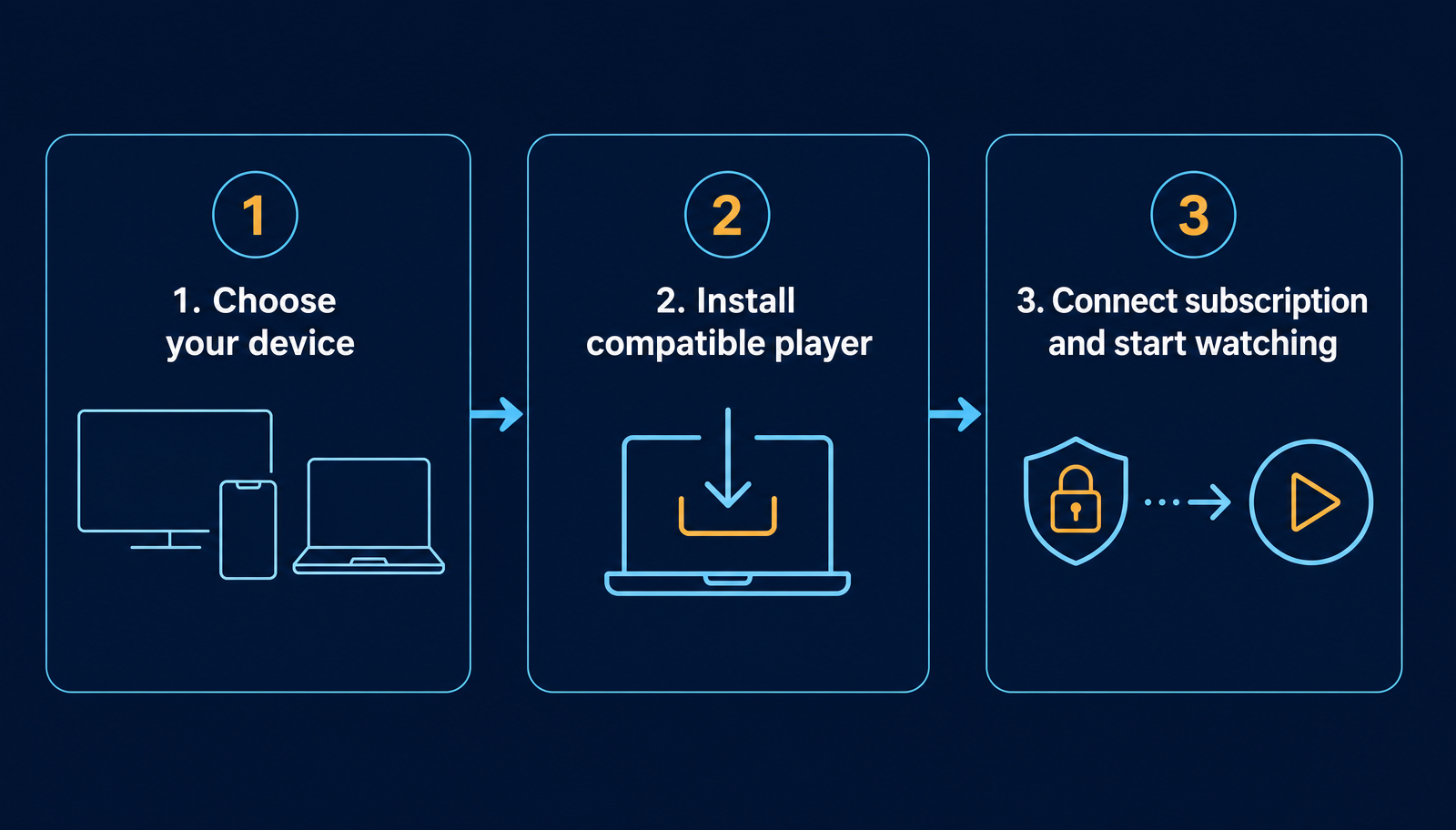
Although installation differs between devices, the overall process is usually similar.
Step 1 – Confirm Your Device
First identify the device you want to use: Firestick, Android TV, Smart TV, smartphone, tablet, Windows PC or Mac. The device determines which installation method and compatible player you need.
Step 2 – Use the Correct Player
Do not assume the same application works on every platform. Android-based devices may use one installation method, while Smart TVs and Apple devices can require different compatible players.
Step 3 – Install or Open the Player
Follow the installation instructions for your device. Only use a trusted installation source and avoid downloading random APK files or using unverified Downloader codes.
Step 4 – Connect Your Trial or Subscription
Once the player is ready, connect your active B1G IPTV subscription or free trial using the required setup information. Our WhatsApp support team can guide you through this stage.
Step 5 – Check Your Setup
After activation, confirm that the player loads correctly and test navigation, live TV categories, movies and series, EPG / TV guide, catch-up where available and playback on your connection.
Install B1G Player on Firestick and Fire TV
Amazon Firestick and Fire TV are popular choices for viewing IPTV on a television. Because Fire TV devices use an Android-based system, setup may involve a compatible application or Android installation method.
Before starting, make sure you have:
Avoid copying a B1G Downloader code from another website unless you know it is the correct and current setup route for your service.
Install B1G Player on Android Devices
Android TV, Google TV, phones and tablets support compatible Android-based IPTV applications.
Android TV & Google TV
Confirm device compatibility, install the appropriate player, connect your account or trial, allow the service to load, then test playback and navigation. The exact app and installation method can vary between devices.
Android Phones & Tablets
Check your Android version, make sure enough storage is available, use the correct app source and keep your internet connection stable. If an APK is required, confirm you are using the correct file rather than an unverified B1G Player APK from an unknown website.
Install B1G Player on Smart TV
Smart TV installation depends heavily on the television brand, model and operating system. Samsung, LG and other Smart TVs may use applications available through their own app stores or another compatible player supported by the television.
Before setup, check:
An Android APK should not automatically be treated as the correct installation method for every Smart TV.
Install B1G Player on iPhone, iPad, Windows and Mac
Apple and desktop platforms require different compatible players from Android-based devices.
iPhone & iPad
Apple devices do not use Android APK files. Confirm the compatible iOS or iPadOS player, install it through the appropriate platform, connect your trial or subscription, allow the service to load and test navigation and playback.
Windows & Mac
Desktop and laptop users can access their subscription using a compatible player designed for Windows or macOS. Confirm your operating system, use a compatible desktop player, check your internet connection and keep your subscription details available.
B1G Player App, APK and Subscription Explained
These terms are often confused during installation. In simple terms: Player/App = viewing software, APK = Android installation file, Subscription = service account access.
B1G Player App
The app or compatible player is the software used to access and navigate the service.
B1G Player APK
An APK is an Android application installation file. It is relevant only to compatible Android-based devices and should not be used as a general download for every platform.
B1G IPTV Subscription
Your subscription provides the account access used with the player.
You generally need both a compatible player and an active subscription or trial to complete the setup.
Can I Set Up B1G Player Before Buying?
Yes. If you would prefer to check compatibility before choosing a paid plan, you can start with the available free trial. Choose your device, install the appropriate compatible player, start your free trial, test the setup and then choose a paid plan if the service suits your needs.
24/7 WhatsApp Installation Support
Not everyone wants to configure an IPTV player without assistance. Our 24/7 WhatsApp support can help with common setup questions.
When contacting support, tell us which device you use — for example “I am setting up B1G Player on Firestick” or “I need help connecting my subscription to a Samsung Smart TV”. Providing the device details first makes it easier to guide you through the correct setup.
Common B1G Player Installation Problems
Most setup problems fall into a few common categories.
The App Will Not Install
Check device compatibility, available storage, operating system, installation permissions, internet connection and whether you are using the correct app.
The Player Opens but Does Not Load
Confirm your internet connection is working, your subscription or trial is active, your setup information is entered correctly and the player is compatible with your device.
Login Details Are Not Working
Check for typing errors or unnecessary spaces. If you are still unable to connect, contact support rather than repeatedly changing the configuration.
The App Works but Playback Buffers
Buffering can be affected by internet stability, Wi-Fi strength, network congestion, device performance and player configuration. Restart the device and network equipment first.
Important Installation Safety Tips
When searching for IPTV apps online, you may come across multiple websites offering APK files, setup codes or applications. Use caution before installing anything.
Do Not Use Random APK Files
An unknown APK may be outdated, incompatible or unsafe. Use the correct installation method for your device.
Do Not Assume Every Downloader Code Is Correct
Downloader codes can change, and codes published by unrelated websites may point to a different file or service.
Keep Your Account Details Private
Do not publicly share your login or subscription information. Only provide necessary setup information through the appropriate support channel.
Check Your Device Before Installing
An Android installation method does not automatically work on iPhone, Samsung Smart TV, Windows or other platforms.
Frequently Asked Questions About B1G Player Installation
How do I install B1G Player?+
The installation method depends on your device. Firestick and Android devices can use Android-based setups, while Smart TVs, iPhone, iPad, Windows and Mac may require different compatible players.
Can I install B1G Player on Firestick?+
Yes, a compatible Firestick setup is supported. Use the dedicated Firestick installation guide for the correct process.
Does B1G Player work on Android TV?+
Compatible Android TV and Google TV devices can use an appropriate player setup.
Can I install a B1G Player APK on Smart TV?+
Not every Smart TV supports Android APK files. The correct setup depends on the television model and operating system.
Can I install a B1G Player APK on iPhone?+
No. APK files are designed for Android-based devices. iPhone and iPad require compatible iOS applications.
Do I need an IPTV subscription before installation?+
You need an active subscription or free trial to access the service. You can start with the free trial if you want to test your setup before purchasing.
Where can I get the B1G Player app?+
Use our B1G Player App & APK guide or contact 24/7 WhatsApp support for the correct setup information for your device.
What if I cannot install the player?+
Check device compatibility, storage, internet connection and installation method. If the issue continues, contact support.
Is installation support available?+
Yes. 24/7 WhatsApp support is available for device compatibility, installation, activation and setup questions.
Can I test the setup before buying?+
Yes. A free trial is available so you can check your device and setup before choosing a paid subscription.
Start Your B1G Player Setup
Choose the correct installation guide for your device and follow the recommended setup process. You can install B1G Player or a compatible IPTV player on supported platforms including Firestick, Android, Smart TV, iPhone, iPad, Windows and Mac.
Not sure where to begin? Our 24/7 WhatsApp support can help you identify the appropriate setup and connect your free trial or active subscription.