Smart TV Guide
B1G Player on Smart TV – Samsung, LG & Compatible TVs
Want to use B1G Player on a Smart TV? The correct setup depends on your television brand, model, operating system and the IPTV player applications available for that platform. Samsung and LG Smart TVs do not always use the same apps or installation methods as Android TV or Firestick, so choosing the right setup first is important.
This guide explains how to connect a B1G IPTV subscription to a compatible Smart TV, what to check before installation and how to solve common setup problems. If you are unsure which player works with your TV, 24/7 WhatsApp support is available to help you check compatibility and complete the setup.
B1G Player Smart TV Setup at a Glance
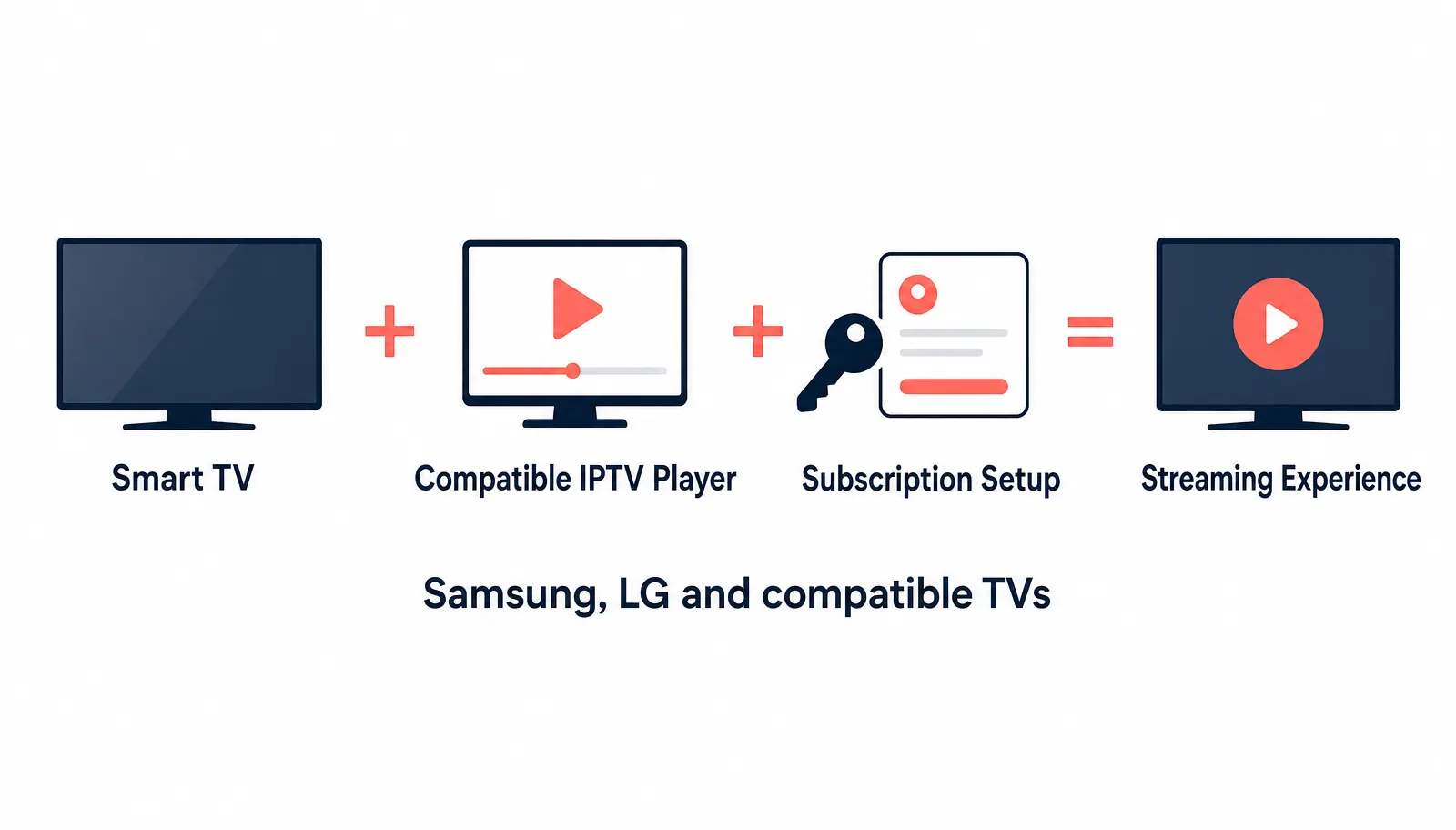
For most compatible Smart TVs, the process follows these basic steps. The exact screens and application names may differ between Samsung, LG and other Smart TV platforms.
01
Confirm your television brand and model
02
Check which compatible IPTV player is available
03
Install or open the player
04
Connect your B1G Player free trial or subscription
05
Allow the service to load
06
Test navigation, EPG and playback
Which Smart TVs Can Use B1G Player?
A B1G IPTV subscription may be used with a compatible IPTV player on supported television platforms.
Common Smart TV setups
- ✓Samsung Smart TV
- ✓LG Smart TV
- ✓Android TV
- ✓Google TV
- ✓Other compatible Smart TV platforms
Compatibility can vary by
- •TV model
- •Operating system
- •Region
- •Available app store
- •Player availability
If you are unsure whether your television supports the required setup, contact support before purchasing a subscription.
What You Need Before Setting Up B1G Player on Smart TV
- ✓A compatible Smart TV
- ✓Stable internet connection
- ✓Access to the TV's app store or supported player
- ✓Active B1G Player subscription or free trial
- ✓Your required account setup information
- ✓Access to WhatsApp if you need assistance
If you have not purchased a plan yet, you can use the B1G Player free trial to check whether your Smart TV setup works before subscribing.
How to Install B1G Player on a Smart TV
The exact process depends on your television, but the general setup is straightforward.
Step 1 – Identify Your TV Brand and Model
Start by checking whether you use Samsung, LG, Android TV, Google TV or another Smart TV platform. The operating system matters because each platform can have different application options. If you do not know your exact model, check the television settings or product information menu.
Step 2 – Check for a Compatible IPTV Player
Open your Smart TV's application store and check whether the recommended compatible player is available. Do not assume that an Android APK can be installed on every Smart TV. Samsung and LG televisions commonly use their own operating systems, so they may require applications specifically designed for those platforms.
Ask WhatsApp SupportStep 3 – Install the Compatible Player
Once you have confirmed the correct application, install it through your television's supported application store or recommended setup method. After installation, open the player, check that it launches normally and keep your free trial or subscription details ready. If the app is unavailable on your television, contact support before trying unrelated applications.
Step 4 – Connect Your B1G IPTV Subscription
Once the compatible player is installed, connect your B1G Player subscription or trial using the required setup details. The exact connection process can vary depending on the player. If the player asks for information that you do not recognise, contact our 24/7 WhatsApp support rather than entering random details.
Step 5 – Allow the Service to Load
After connecting the account, give the player enough time to load the available service information. You can then check live TV categories, movies and series, EPG / TV Guide, catch-up where supported, search and navigation, and playback. If everything loads correctly, your basic Smart TV setup is complete.
Get Smart TV Activation HelpB1G Player on Samsung Smart TV
Samsung Smart TVs can use compatible IPTV player applications depending on the TV model, operating system and app availability. Samsung televisions commonly use the Tizen operating system rather than standard Android — so you should not assume that an Android APK will install directly on a Samsung TV.
1. Connect Your Samsung TV to the Internet
Make sure your TV has a stable Wi-Fi or wired connection where available.
2. Open the Samsung App Store
Search for the compatible IPTV player recommended for your setup. Application availability can vary between TV models and regions.
3. Install the Player
Install and open the compatible application.
4. Connect Your Trial or Subscription
Use the required setup information to connect your B1G IPTV access. If you need help entering the details, WhatsApp support can guide you.
5. Test Your Setup
Check player navigation, live categories, movies and series, EPG where available and playback quality. If everything works properly, you can continue using your subscription.
B1G Player on LG Smart TV
LG Smart TVs generally use webOS, which is different from Android and Samsung's Tizen platform. The available IPTV applications therefore depend on your television model and app store.
1. Connect the TV to the Internet
Use a stable Wi-Fi or Ethernet connection where available.
2. Open the LG Content Store
Search for the compatible IPTV player required for your setup.
3. Install the Player
Download and open the application.
4. Connect Your B1G Subscription
Use the setup information provided with your active trial or subscription.
5. Check Playback
Test the categories and features important to you before relying on the setup regularly. If you cannot find the correct player, contact support rather than installing an unrelated application.
B1G Player on Android TV and Google TV
Android TV and Google TV use an Android-based environment, so their installation process can differ from Samsung and LG televisions. Android-based televisions may support compatible Android applications or APK installation depending on the setup. If you are searching for a B1G Player APK for Smart TV, first confirm which operating system your television uses.
For app and APK information, see the B1G Player App & APK Guide.
What About Roku TV?
Roku uses its own operating system and does not follow the same installation process as Android TV, Samsung or LG. Do not assume that an Android APK or standard Smart TV player will work on Roku. If you want to use B1G Player with a Roku-based television, contact support first so compatibility and the available setup options can be confirmed.
Check Roku CompatibilitySmart TV App vs B1G IPTV Subscription
The application installed on your television and the subscription are two different parts of the setup.
Compatible IPTV Player
The player is the application used to display and navigate the service.
Player = viewing application
B1G IPTV Subscription
The subscription provides the account access used inside the compatible player.
Subscription = service access
Try B1G Player on Smart TV Before Buying
If you are unsure whether your Smart TV is compatible, use the available free trial first. A trial lets you test B1G Player on the actual television and internet connection you plan to use.
With a trial you can check:
- ✓Player availability
- ✓Installation process
- ✓Device compatibility
- ✓Navigation
- ✓EPG where supported
- ✓Playback
- ✓Internet stability
If the setup works properly, you can then choose a paid subscription.
B1G Player Subscription Plans
| Plan | Price |
|---|---|
| 1 Month | £12 |
| 3 Months | £25 |
| 6 Months | £35 |
| 12 Months | £50 |
After payment, your subscription can be activated immediately. For complete plan details, see IPTV Subscription UK.
24/7 WhatsApp Smart TV Setup Support
Smart TV installation can be confusing because different manufacturers use different operating systems and app stores. Our 24/7 WhatsApp support can help with:
Common Smart TV Setup Problems & Fixes
Can't Find the App in Your TV's App Store?
There may be several reasons: the app is not available for your TV model (older or different model ranges may not support the same applications), regional app availability can vary, your TV may use a different operating system (Samsung, LG and Android TV may require different applications), or the app may have changed or been removed. If you cannot find the recommended player, contact support for the current compatible setup rather than installing random alternatives.
B1G Player Installed but Not Loading
If the player opens but your subscription does not load, check the internet connection, then close and reopen the player. If the issue continues, turn the television off completely and restart it, then contact support.
Buffering on Smart TV
Buffering can come from weak Wi-Fi, network congestion, internet instability, TV performance, player configuration or other devices using bandwidth. Try restarting your router and allowing it to reconnect fully, restart your TV to clear temporary application problems, reduce the distance between the TV and router to improve the Wi-Fi signal, and use an Ethernet connection where available.
EPG / TV Guide Not Showing
Refresh the service if the player provides that option, restart the application and the television, and check your internet connection. EPG availability depends on the supported subscription and player setup. If the main service works but the EPG remains unavailable, contact support.
Login Not Working on Smart TV
Check the details carefully, remove accidental spaces, confirm the subscription is active, make sure you are using the correct compatible player and restart the application. Do not post your subscription details publicly — use the official support channel if login assistance is required.
Smart TV Platform Comparison
| Samsung | LG | Android TV / Google TV | |
|---|---|---|---|
| Operating system | Tizen | webOS | Android-based |
| Android APK install | Usually not applicable | Usually not applicable | May be supported |
| App source | Samsung apps | LG Content Store | Play Store / compatible setup |
| Setup method | Compatible TV player | Compatible TV player | Android-compatible player |
| Support help | Available | Available | Available |
This is why identifying your TV platform before installation is important.
When Should You Use the Main Installation Guide?
This page is specifically for B1G Player on Smart TV. If you use an Amazon Firestick or an Android phone, tablet or TV box, follow the dedicated installation guide instead.
Smart TV FAQs
Does B1G Player work on Samsung Smart TV?+
A B1G IPTV subscription may be connected through a compatible IPTV player available for supported Samsung Smart TVs. App availability can depend on the model and region.
Does B1G Player work on LG Smart TV?+
Compatible LG Smart TVs can use an appropriate webOS IPTV player where supported.
Can I install B1G Player APK on Samsung TV?+
Samsung TVs generally use Tizen rather than Android, so standard Android APK files are usually not the appropriate installation method.
Can I install an APK on LG Smart TV?+
LG Smart TVs generally use webOS rather than Android, so Android APK files are usually not the correct setup method.
Does B1G Player work on Android TV?+
Compatible Android TV and Google TV devices can use an Android-based IPTV player setup.
Is Smart TV setup support available?+
Yes. 24/7 WhatsApp support is available for compatible device checks, installation, activation and common setup questions.
Set Up B1G Player on Your Smart TV
Using B1G Player on Smart TV starts with choosing the correct player for your television platform. Identify your TV, find the compatible player, install the application, connect your free trial or subscription, then test navigation and playback. If you are unsure whether your Samsung, LG or other Smart TV is compatible, contact our 24/7 WhatsApp support before installing anything. You can also start with the available free trial before choosing a subscription.