
Troubleshooting Guide
B1G Player Not Working? Troubleshooting Guide
Is B1G Player not working on your Firestick, Android device, Smart TV or computer?
Most problems are related to one of a few areas: internet connectivity, player setup, subscription status, incorrect account details, app compatibility or the device itself.
Start with the quick checks below before reinstalling apps or changing multiple settings.
If the problem continues, 24/7 WhatsApp support is available to help check your setup.
Quick B1G Player Troubleshooting Checklist
Try these checks first:
- Confirm your internet connection is working.
- Restart the B1G Player or compatible IPTV app.
- Restart your streaming device.
- Confirm your free trial or subscription is active.
- Check that your login or setup details are correct.
- Make sure you are using the correct compatible player.
- Test the service again after restarting your router.
These steps can resolve many temporary loading, login and playback problems.
If the issue remains, find the specific problem below.
B1G Player Problem Finder
| Problem | First Thing to Check |
|---|---|
| App not opening | Restart device and check app compatibility |
| Login not working | Subscription status and account details |
| Service not loading | Internet connection and player configuration |
| Buffering | Wi-Fi/network stability |
| EPG missing | Refresh player and allow data to load |
| Categories not loading | Connection, account status and player setup |
| App will not install | Storage, compatibility and installation source |
| Firestick issue | Fire TV connection, storage and app setup |
| Smart TV issue | Correct player for the TV platform |
| Android issue | App compatibility and installation method |
Why Is B1G Player Not Working?
There is no single cause of every B1G Player problem. The issue can come from:
The best approach is to identify what is failing before changing your setup. For example: If the app does not open at all, focus on the application and device. If the app opens but your account does not load, check the subscription and login setup. If everything loads but playback buffers, start with the internet connection.
B1G Player App Not Loading
If the player opens but remains stuck, shows a loading screen or does not display the service, work through these checks.
Check Your Internet Connection
First confirm that the device is connected to the internet. Open another app or website on the same device. If nothing else loads, the problem is likely related to your network rather than B1G Player. Try:
- Restarting your router
- Reconnecting Wi-Fi
- Moving closer to the router
- Using Ethernet where available
Restart the Player
Close the IPTV player completely rather than simply returning to the home screen. Then reopen it. A temporary app process can sometimes prevent information from loading correctly.
Restart Your Device
Restart your:
- Firestick
- Android TV
- Smart TV
- Android phone/tablet
- Computer
Then open the player again.
Check Your Subscription Status
Make sure your B1G IPTV free trial or paid subscription is still active.
If the account has reached the end of its subscription period, contact support for renewal assistance.
Confirm the Correct Player Is Being Used
Different devices can require different compatible IPTV players.
For example:
- Firestick may use an Android-based setup
- Samsung TV may require a Tizen-compatible player
- LG TV may use a webOS-compatible player
- iPhone requires an iOS-compatible application
If you recently changed apps or devices, confirm that your current player is suitable for the subscription.
B1G Player Login Not Working
If the player opens but will not accept your account or subscription details, avoid repeatedly changing random settings.
Try these checks.
Check for Typing Errors
Confirm that all required setup information has been entered correctly.
Watch for:
- Misspelled usernames
- Incorrect passwords
- Extra spaces
- Missing characters
- Incorrect server or setup details where applicable
Copying and pasting can sometimes add an accidental space before or after a value.
Confirm Your Account Is Active
A login may stop working if:
- A free trial has ended
- A subscription has expired
- The wrong subscription information is being used
- Activation has not been completed correctly
Contact support if you are unsure about account status.
Do Not Share Login Details Publicly
Never post your account credentials in:
- Forums
- Public comments
- Social media posts
- Screenshots shared publicly
If support needs to check your setup, use the appropriate private support channel.
B1G Player Buffering or Freezing
If B1G Player loads but playback repeatedly pauses, buffers or freezes, start with your network. Buffering can be affected by several factors:
Restart Your Router
Turn your router off, wait briefly and restart it.
Once the connection has stabilised, test the same content again.
Check Wi-Fi Strength
A television or Firestick located far from the router may receive a weaker signal. Where possible:
- Move the router closer
- Reduce physical obstructions
- Use Ethernet on supported devices
- Improve your Wi-Fi setup
Reduce Other Network Activity
If several devices are simultaneously:
- Streaming video
- Downloading large files
- Gaming online
- Uploading backups
your available bandwidth can be affected.
Pause unnecessary activity and test playback again.
Restart the Streaming Device
Restarting the device can clear temporary memory and background processes.
This can be particularly useful on:
- Firestick
- Android TV
- Older Smart TVs
Close Unused Apps
On Android and Firestick devices, unused apps running in the background may affect available system resources. Close unnecessary apps before testing again.
Test Another Connection if Possible
If the problem only occurs on one Wi-Fi network, the network itself may be contributing to the issue. Testing another suitable connection can help narrow down the cause.
B1G Player EPG Not Working
If live content loads but the EPG / TV Guide does not appear, the problem may be related to programme data loading or player configuration.
Try the following:
Allow the Player to Finish Loading
EPG information may take longer to populate than the main categories. Do not immediately close the player during initial loading.
Refresh the Player
If your player provides a refresh or update option, use it. Then check the guide again.
Restart the App
Close and reopen the player.
Restart Your Device
Restarting the streaming device can resolve temporary app or data-loading problems.
Check Your Internet Connection
EPG data needs an active connection to load. If the connection is unstable, programme information may fail to update correctly.
Remember That EPG Availability Can Vary
Programme guide availability depends on the active service, supported content and player configuration. If other parts of the service work correctly but EPG remains unavailable, contact support.
B1G Player Channels or Categories Not Loading
If the player opens but live TV, movies, series or other available categories do not appear, check these areas.
Confirm the Account Has Loaded Correctly
Make sure the player has finished connecting before navigating between sections.
Check Internet Connectivity
An unstable connection may cause categories to load partially or not at all.
Restart the App
Close and reopen the player to trigger a fresh connection.
Check Subscription Status
If your trial or subscription has expired, access may no longer load.
Confirm the Correct Setup
If you recently changed devices or players, check whether the subscription was connected correctly to the new setup.
If none of these steps work, contact support.
B1G Player App Will Not Install
If you cannot install the B1G Player app or compatible IPTV player, the cause is usually device-related rather than subscription-related.
Check Device Compatibility
Make sure the app is designed for your platform.
Remember:
Android APK ≠ Samsung Tizen app ≠ LG webOS app ≠ iOS app
Different operating systems require different software.
Check Available Storage
Low storage can prevent installation.
Remove unused files or apps if necessary.
Check the Installation Source
If an APK is required, make sure it comes from the verified setup route provided for your device.
Avoid random APK websites.
Check Installation Permissions
Android and Fire TV may block installation from outside standard app stores.
Only change installation permissions when using a trusted source.
Restart the Device
A restart can resolve temporary installation problems.
For complete installation help:
B1G Player Not Working on Firestick
If the issue is specific to Amazon Firestick or Fire TV, start with:
- Check Firestick internet connection.
- Restart the Firestick.
- Check available storage.
- Confirm the correct player is installed.
- Confirm the subscription is active.
- Check app installation permissions if relevant.
- Test playback again.
If the app installed through Downloader, make sure you used the correct current installation route rather than an unrelated code.
For complete Firestick troubleshooting and installation:
B1G Player Not Working on Android
For Android phones, tablets, Android TV or Google TV:
If an APK was manually installed, confirm that it is the correct file for your device.
B1G Player Not Working on Smart TV
Samsung, LG and other Smart TVs may require different IPTV players.
If B1G Player access is not working:
Confirm the Correct TV Player
Samsung and LG do not normally use standard Android APK installation.
Make sure you are using an IPTV player compatible with your television's operating system.
Restart the Television
Turn the TV off completely and restart it.
Check the TV Internet Connection
Test another streaming application.
Check App Availability and Updates
If the compatible player has been updated or removed, availability can change.
Confirm Your Subscription
Make sure account access is active.
For platform-specific help:
B1G Player Keeps Crashing
If the player opens but closes unexpectedly:
Do not repeatedly install different APK versions without confirming which one belongs to your setup.
B1G Player Shows a Blank Screen
A blank screen can sometimes occur when the player has opened but has not loaded correctly. Try:
- Close the app.
- Restart your device.
- Check your internet connection.
- Reopen the app.
- Confirm your active subscription.
- Allow the service time to load.
If the blank screen continues, contact support with your device type and player information.
B1G Player Working on One Device but Not Another
If your subscription works on one device but not another, this can indicate a device or player setup issue rather than an account problem.
Compare:
Also remember that device compatibility does not automatically mean your subscription allows multiple simultaneous connections.
Confirm connection allowances with support before assuming the same account should run simultaneously on several devices.
What to Do Before Reinstalling B1G Player
Reinstallation should not always be the first solution.
Before deleting the app, try:
- Restart the player.
- Restart your device.
- Restart your router.
- Confirm your subscription.
- Recheck account details.
- Confirm the correct player.
- Contact support if necessary.
Reinstalling can sometimes create extra work if the original problem is unrelated to the app itself.
When Should You Reinstall the Player?
Reinstallation may make sense if:
- The app installation is damaged
- The app repeatedly crashes
- A verified updated version is required
- Support specifically recommends reinstalling
- The current installation is incorrect
Before uninstalling, make sure you know where to get the correct player again.
For app-specific guidance:
How to Report a B1G Player Problem to Support
Providing useful information can make troubleshooting much faster.
When contacting our 24/7 WhatsApp support, include:
Your Device
For example:
- Firestick
- Samsung TV
- LG TV
- Android TV
- Android phone
- Windows PC
The Problem
Explain exactly what happens.
Examples:
- “The app does not open.”
- “My login is not working.”
- “Live TV loads but EPG is missing.”
- “Playback buffers every few minutes.”
When the Problem Started
Mention whether:
- It has never worked
- It started after changing devices
- It started after reinstalling
- It worked previously
Screenshot of the Error
Where appropriate, a screenshot can help identify the problem.
Do not include passwords or private subscription information in screenshots shared outside the support channel.
Is Your B1G IPTV Subscription Expired?
Sometimes the player itself is working correctly, but the subscription period has ended.
If your plan has expired, contact support to check account status and renew if required.
Available subscription options are:
| Plan | Price |
|---|---|
| 1 Month | £12 |
| 3 Months | £25 |
| 6 Months | £35 |
| 12 Months | £50 |
For full plan information:
Testing B1G Player Before Buying
If you are troubleshooting before purchasing a subscription, you can use the available free trial first.
A trial can help confirm:
This allows you to test your actual device and internet connection before selecting a paid plan.
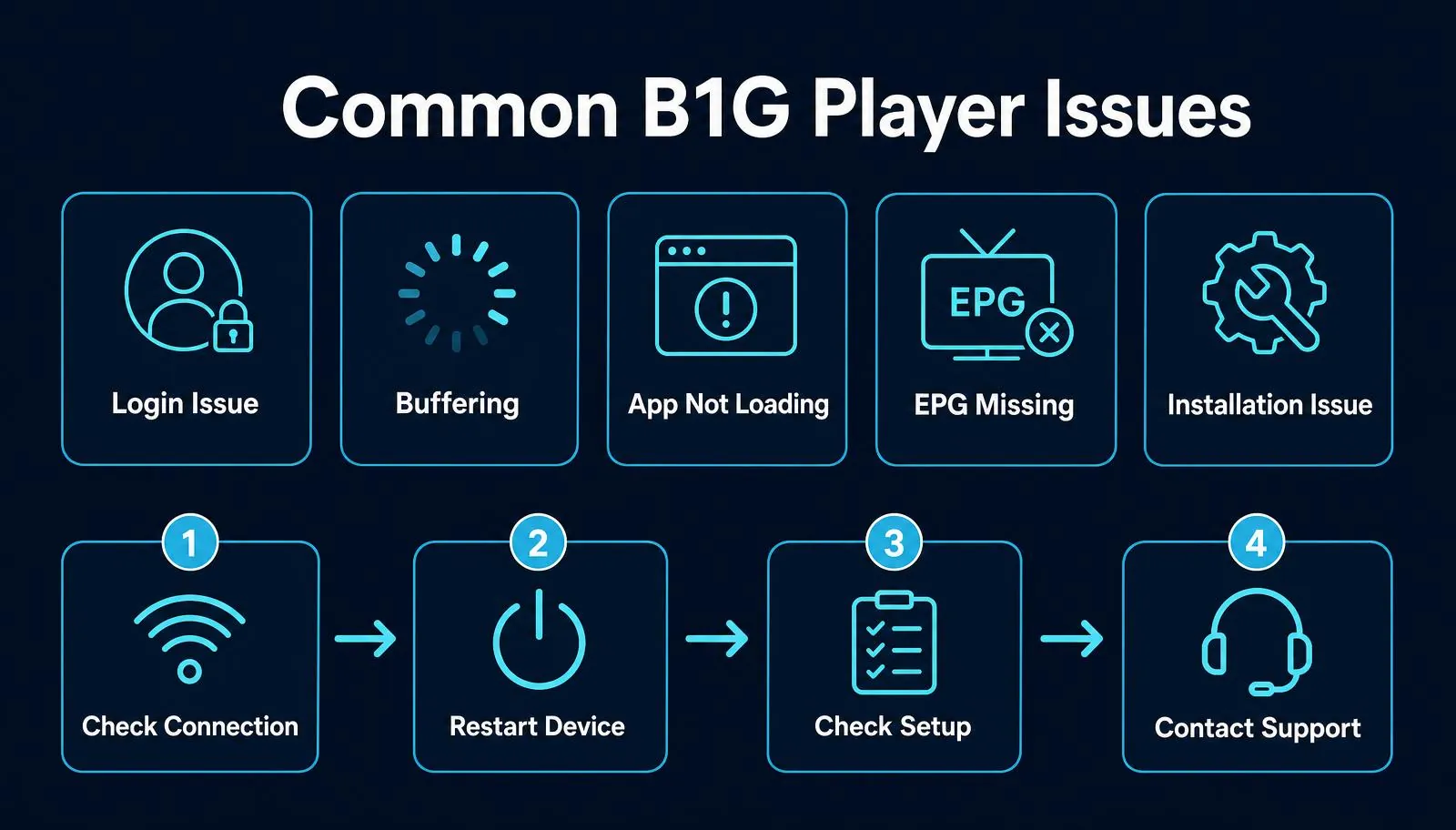
B1G Player Troubleshooting by Problem
Use this summary to find the most likely starting point.
| Issue | Check First | Next Step |
|---|---|---|
| App not loading | Internet + restart app | Check account/player |
| Login failed | Details + subscription | Contact support |
| Buffering | Wi-Fi/network | Restart router/device |
| EPG missing | Refresh/load time | Restart app |
| Categories missing | Account + connection | Check subscription |
| App won't install | Compatibility + storage | Verify installer |
| App crashes | Device/storage | Restart/update |
| Blank screen | Restart + connection | Check player |
| Firestick issue | Network/storage/app | Firestick guide |
| Smart TV issue | Correct TV player | Smart TV guide |
Frequently Asked Questions About B1G Player Problems
Why is B1G Player not working?
Common causes include internet problems, inactive subscription access, incorrect setup details, incompatible players, device issues or temporary app problems.
Why is B1G Player not loading?
Check your internet connection, restart the application and device, and confirm that your subscription is active.
Why is my B1G Player login not working?
Check your account details for errors, confirm your subscription status and make sure the correct player configuration is being used.
Why is B1G Player buffering?
Buffering can be caused by weak Wi-Fi, network congestion, internet instability, device performance or player configuration.
Why is the B1G Player EPG not showing?
Allow the player to finish loading, refresh the service, restart the app and check your internet connection.
Why are channels or categories not loading?
Check your internet connection, subscription status and player setup. Restart the app before making larger configuration changes.
Why will the B1G Player app not install?
Check device compatibility, storage, installation source and any required permissions.
Why does B1G Player keep crashing?
Insufficient storage, device performance, software compatibility or an incorrect app installation may contribute to crashes.
What should I do if B1G Player does not work on Firestick?
Restart the Firestick, check internet connectivity and storage, confirm your app setup and make sure your trial or subscription is active.
Does reinstalling B1G Player fix every problem?
No. Reinstalling will not fix issues caused by internet problems, expired subscriptions or incorrect account information.
Can I get help if I cannot fix the problem?
Yes. 24/7 WhatsApp support is available for common installation, activation, login and troubleshooting questions.
Still Having Problems With B1G Player?
Start with the basics:
- Check your internet.
- Restart the player.
- Restart your device.
- Confirm your subscription.
- Check your setup information.
- Make sure you are using the correct player.
If B1G Player is still not working, contact our 24/7 WhatsApp support team and include your device type and a clear description of the problem.