
Android Setup Guide
How to Install B1G Player on Android
Whether you use an Android phone, tablet, Android TV or Google TV device, the basic process is to install the correct compatible player, connect your B1G IPTV subscription or free trial and check that everything loads properly.
The exact installation method can vary between Android devices and player applications, so use the correct setup information for your device rather than downloading an unverified APK from a random website.
If you need help, 24/7 WhatsApp support is available for installation, activation and account setup.
B1G Player Android Setup at a Glance
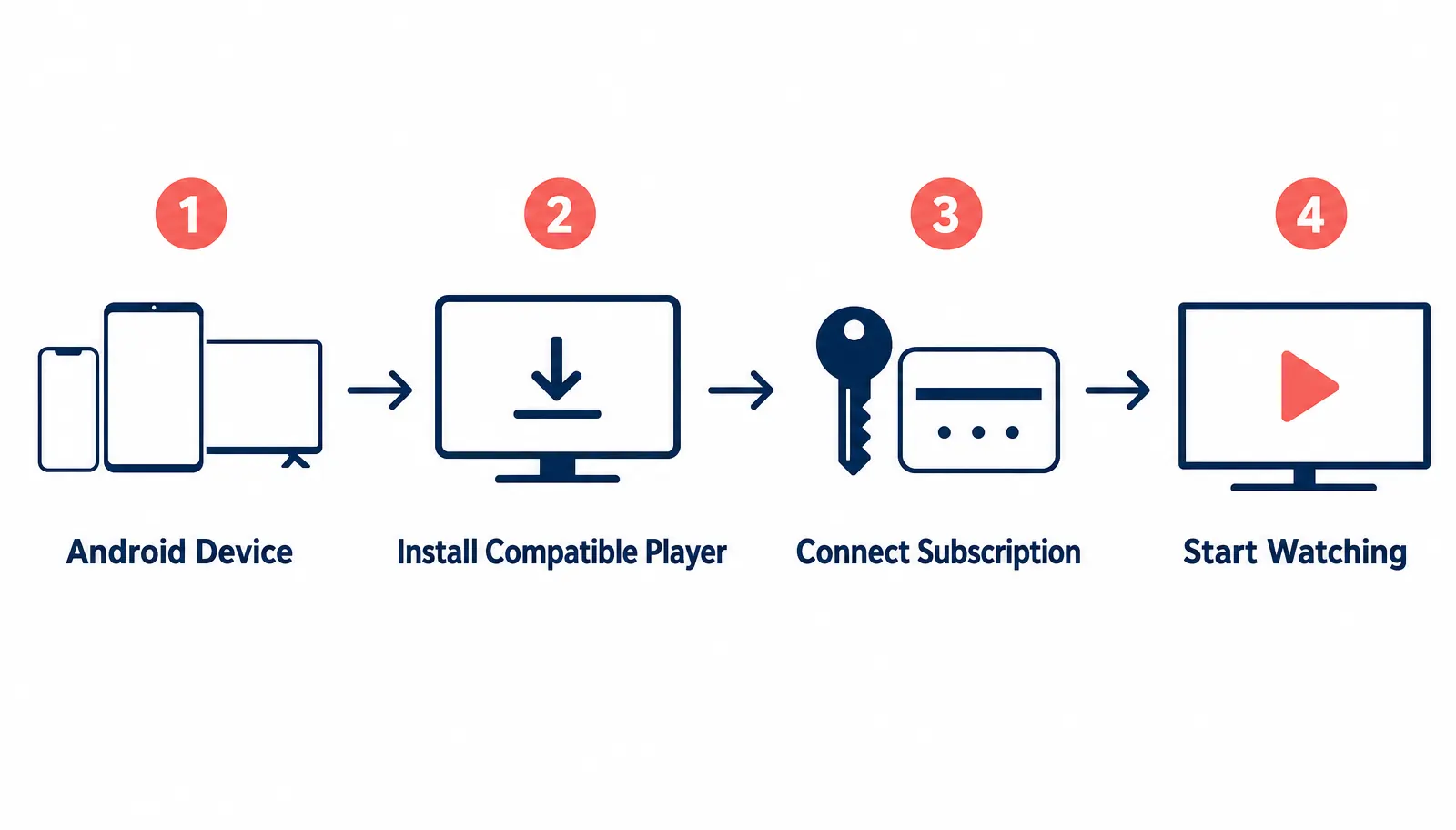
For most compatible Android devices, setup follows five basic steps:
Step 1 – Confirm Your Android Device
Decide whether you are setting up an Android phone, tablet, Android TV, Google TV, Android TV box or Nvidia Shield. The easiest installation route can differ between mobile and television-based Android devices.
Step 2 – Get the Correct App
Use the appropriate application or compatible player for your Android setup. Do not install the first B1G Player APK you find on an unknown website.
Step 3 – Install the Application
Depending on the setup, the player may install through an available app store or a verified Android APK. Only allow installation from a source you trust.
Step 4 – Connect Your Subscription
Connect your active B1G IPTV subscription or free trial using the correct setup information for the player you installed.
Step 5 – Test Everything
Check navigation, live TV categories, movies and series, EPG and playback before you settle in.
Android phones, tablets, Android TV and Google TV can use slightly different installation methods, so follow the section that matches your device.
Which Android Devices Can Use B1G Player?
A compatible B1G Player setup may be used on Android-based devices such as:
The exact app and installation method can vary depending on the device model, Android version and available application support. If you are unsure whether your device is compatible, ask support before installing anything.
What You Need Before Installing B1G Player on Android
Before you start, make sure you have:
If you do not have a paid subscription yet, you can test your Android setup with the available B1G Player free trial first.
How to Install B1G Player on Android – Step by Step
The following process applies broadly to compatible Android devices. Individual screens and menu names may vary.
Step 1 – Confirm Which Android Device You Use
Android phone, Android tablet, Android TV, Google TV, Android TV box or Nvidia Shield. This matters because the easiest installation route may differ between mobile and television-based Android devices.
Step 2 – Get the Correct B1G Player App
Use the appropriate application or compatible player for your setup. Instead of a random download, use the current installation information in our B1G Player App & APK Guide or contact support.
Step 3 – Install the App
The player may install through an available app store or a verified Android APK. If an APK is required, Android may ask you to approve installation from that source. Only allow this when you trust the source, and avoid giving unnecessary permissions.
Step 4 – Open the Player
Open the app, make sure it launches normally, check that the interface displays correctly and keep your trial or subscription information ready. If it closes immediately, see the troubleshooting section below.
Step 5 – Connect Your B1G IPTV Subscription
Connect your active subscription or free trial using the appropriate setup information. If you are unsure what to enter, contact our 24/7 WhatsApp support instead of changing settings randomly.
Step 6 – Allow Your Content to Load
Give the player time to load the service, then check live TV categories, movies and series, EPG / TV guide, catch-up where available, search, navigation and playback.
Android Phone, Tablet, Android TV & Google TV
B1G Player on Android Phone
Get the correct compatible player, install it, open the app, connect your trial or subscription and allow the service to load. Test playback on both Wi-Fi and the connection you normally use — mobile data usage can increase quickly when streaming video.
B1G Player on Android Tablet
Setup is generally similar to a phone. Make sure your tablet has enough storage, reasonably up-to-date Android software, a compatible player and a stable internet connection. The larger screen changes the viewing experience, not the setup.
B1G Player on Android TV
Connect the device to the internet, confirm sufficient storage, get the correct player setup and have your trial or subscription ready. After installing, check that navigation works properly with your television remote.
B1G Player on Google TV
Google TV runs on an Android-based platform, so compatible IPTV players may also be used. Install the appropriate player, open it, connect the subscription, let the service load and test playback and navigation.
App availability and installation options can vary between devices, so contact support if your setup differs from the instructions shown here.
B1G Player APK for Android
Users often search for a B1G Player APK when they cannot find the required application through their device’s standard app store. An APK is an Android application installation file. Using an APK does not automatically mean that any file carrying the B1G name is safe or compatible.
Before installing a B1G Player APK, confirm:
For current app and download information, use our dedicated B1G Player App & APK Guide.
B1G App Android vs B1G IPTV Subscription
The application and the subscription have different roles.
B1G App / Compatible Player
The player provides the interface used to access and navigate the service. It is the viewing software only.
B1G IPTV Subscription
The subscription provides the account access connected to the player. Installing a player by itself does not replace the need for an active trial or subscription.
In simple terms: App = viewing software and Subscription = service access.
Try B1G Player on Android Before Buying
If you want to make sure your Android device works properly before paying, start with the available free trial. Testing first helps you check:
If the setup works well, you can then choose a paid subscription.
B1G IPTV Subscription for Android
After testing your Android setup, you can continue with one of the available subscription plans. Current options include:
| Subscription | Price |
|---|---|
| 1 Month | £12 |
| 3 Months | £25 |
| 6 Months | £35 |
| 12 Months | £50 |
Once payment is completed, your subscription can be activated immediately. For complete pricing and ordering information, see our IPTV Subscription UK page.
24/7 WhatsApp Android Setup Support
If you are unfamiliar with Android app installation or IPTV setup, support is available 24 hours a day, 7 days a week through WhatsApp. Our team can help with:
When contacting support, mention your exact device type if possible — for example “I am installing B1G Player on Android TV” or “I need help setting up B1G Player on my Android phone.” This helps support identify the right setup more quickly.
Android Troubleshooting
B1G Player app will not install on Android? Work through these checks before trying another download.
Check Available Storage
Make sure your phone, tablet or Android TV has enough free space. Removing unused apps or files may help.
Confirm App Compatibility
Make sure the application is intended for your version and type of Android device.
Check the Installation Source
If you are using an APK, confirm the file came from a trusted source and is the correct version for your setup.
Check Installation Permission
Some Android devices block installation from outside the standard app store by default. Only enable it when your verified setup requires it.
Restart the Device
A simple restart can resolve temporary Android installation issues. If the problem continues, contact support rather than installing multiple unknown APKs.
Installed but Not Opening
Restart the device, check for software updates, confirm there is enough storage and reopen the app. If it repeatedly closes, contact support with your device model and Android version.
Login or Activation Not Working
Confirm the device is online, check that your trial or subscription is active, review your setup information and avoid accidental extra spaces when typing details. Never share your account details publicly.
Buffering on Android
Restart your router, restart the device, close unused apps, improve your Wi-Fi signal and test playback again. If buffering continues on a stable connection, contact support.
EPG Not Showing
Allow the service to finish loading, refresh the player if possible, restart the app, check your internet connection and restart the device. EPG availability depends on the service and player configuration.
B1G Player Android Safety Tips
Android gives users more installation flexibility than some other platforms, but that also means you should be careful about where applications come from.
Avoid Unknown APK Websites
Do not download an APK simply because the page ranks in search results or uses the B1G Player name.
Use the Correct App for Your Device
An Android TV setup and an Android phone setup may not always use the same interface or application version.
Keep Android Updated
Software updates can improve app compatibility and security.
Review App Permissions
A player should not automatically receive unnecessary access to unrelated parts of your device.
Keep Account Details Private
Never post your subscription username, password or setup information publicly. Use the correct support channel if you need assistance.
Android Phone vs Android TV Setup
Although both use Android, the viewing experience and setup can differ.
| Feature | Android Phone / Tablet | Android TV / Google TV |
|---|---|---|
| Main control | Touchscreen | Remote control |
| Screen | Mobile / tablet | Television |
| App interface | Mobile-focused | TV-focused |
| Installation | App or verified APK | Compatible TV app / setup |
| Typical use | Portable viewing | Home television viewing |
Choose the setup that matches the device you actually plan to use.
When Should You Use the B1G Player App Guide Instead?
This Android Guide Answers
How do I install and configure B1G Player on an Android device? Stay here if you already have the correct player and need help configuring Android.
The App & APK Guide Answers
Where do I get the correct B1G Player app or APK? Visit the App & APK page if finding the correct download is your main problem.
This separation helps you find the right answer without mixing two different setup problems.
Frequently Asked Questions About B1G Player on Android
How do I install B1G Player on Android?+
Get the correct compatible player for your Android device, install it, connect your active free trial or subscription and allow the service to load.
Does B1G Player work on Android phones?+
A compatible setup can be used on supported Android smartphones.
Can I use B1G Player on an Android tablet?+
Yes, compatible Android tablets can use an appropriate player setup.
Does B1G Player work on Android TV?+
Compatible Android TV and Google TV devices can use an appropriate Android-based IPTV player setup.
Where can I get the B1G Player APK for Android?+
Use our B1G Player App & APK guide or contact 24/7 WhatsApp support for the current setup information.
Is the B1G Player APK the same on every Android device?+
Not necessarily. Compatibility and installation requirements can vary by device and Android version.
Can I test B1G Player on Android before buying?+
Yes. A free trial is available so you can test your Android setup before selecting a paid subscription.
Do I need an IPTV subscription after installing the app?+
Yes. The player is the viewing software. An active subscription or free trial provides the account access required to use the service.
Why will the app not install on Android?+
Common causes include insufficient storage, incompatible software, incorrect APK files or installation restrictions.
Why is B1G Player buffering on Android?+
Buffering may be related to internet stability, Wi-Fi strength, device performance, background apps or player configuration.
Is setup help available?+
Yes. 24/7 WhatsApp support is available for Android installation, activation and common setup questions.
Set Up B1G Player on Android
Installing B1G Player on Android is straightforward when you use the correct player and setup method for your device. Confirm your Android device, get the correct player, install the app, connect your free trial or subscription and test playback and navigation.
If you are unsure which app to use or cannot complete the setup, our 24/7 WhatsApp support can help.