
Firestick & Fire TV Setup
How to Install B1G Player on Firestick & Fire TV
Want to use B1G Player on Firestick or Fire TV? The setup involves installing the correct compatible player, connecting your active B1G IPTV subscription or free trial, and checking that playback works properly on your device.
Because Firestick setup can vary depending on the player and installation method being used, avoid copying random APK links or Downloader codes from unrelated websites. This guide explains the safest setup process and what to check if something does not work.
Verified Setup Help • Free Trial Available • 24/7 WhatsApp Support
What You Need Before Installing
Having these ready first makes the installation process much easier.
Firestick or Fire TV
Any Amazon Fire TV device you plan to watch on.
Stable Internet
A steady Wi-Fi connection for downloads and playback.
Free Storage
Enough available space on the device to install an app.
Active Subscription
An active B1G Player subscription or free trial.
Correct Player Details
The current, verified installation information for your setup.
WhatsApp Access
So our team can assist if you get stuck at any stage.
If you have not subscribed yet, you can start with the available free trial and check the Firestick setup before choosing a paid plan.
How to Install B1G Player on Firestick
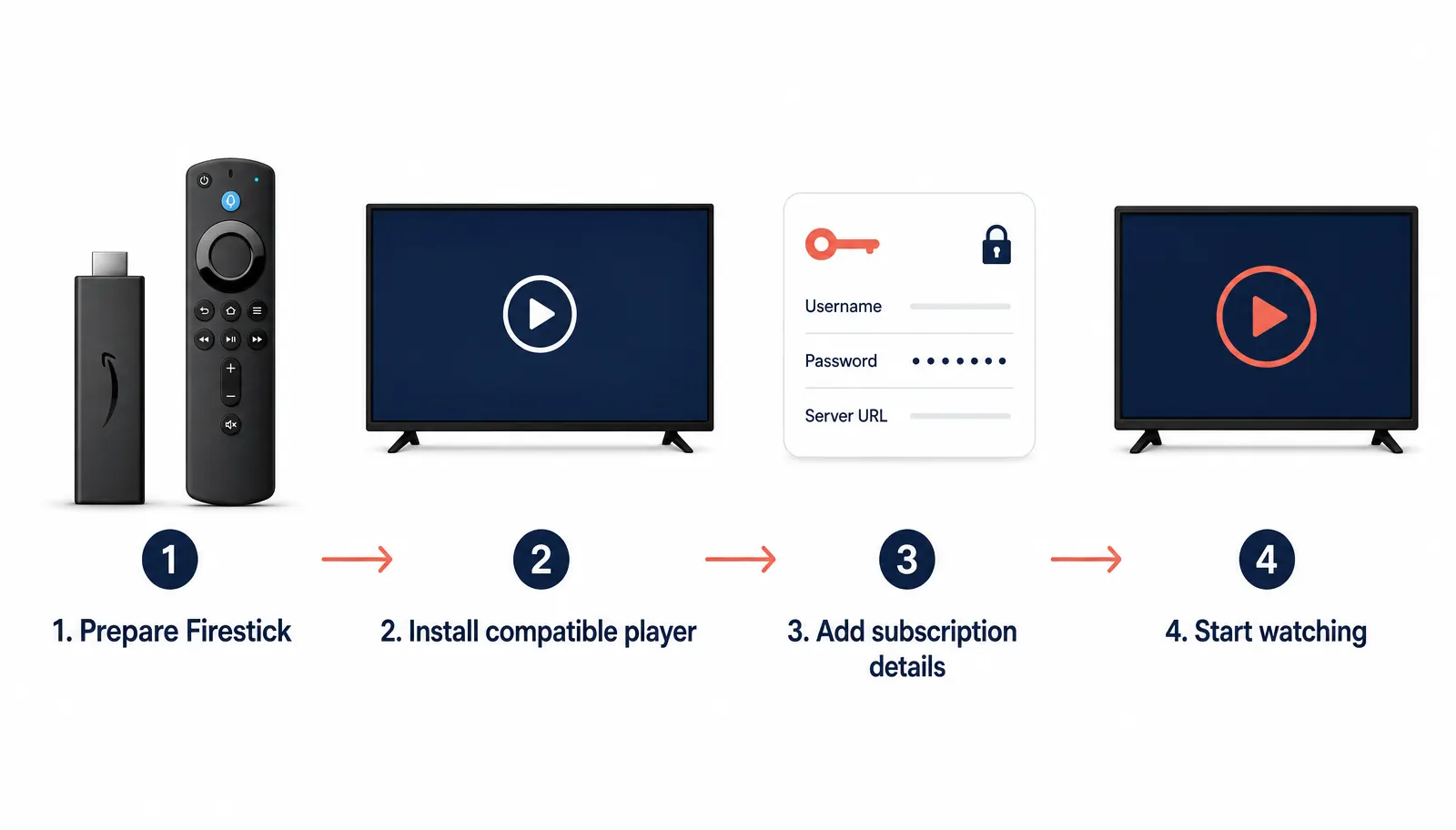
The exact player and download route may vary, but the overall installation process follows a similar structure.
Connect Your Firestick to the Internet
Turn on your Firestick and make sure it is connected to a stable Wi-Fi network. A weak connection can cause slow downloads, installation interruptions, buffering, login problems and poor playback. If possible, test your connection before installing the player.
Get the Correct Installation Details
Before downloading anything, make sure you have the current B1G Player setup information for Firestick: the recommended player, a verified installation link, an approved APK where required and the current Downloader code where applicable.
Do not assume that a B1G Downloader code found on another website is correct for your service. Codes and installation files can change, and another provider may use a different setup.
Ask WhatsApp Support for Setup DetailsInstall the Downloader App if Required
Some Firestick installation methods use the Downloader application. You can search for Downloader using the Fire TV search function and install it from the appropriate Amazon app source.
Depending on your Fire OS version and installation method, your device may also require permission before installing an application outside the standard app store. Only allow installation from a source you trust, and do not enable unnecessary permissions for unknown applications.
Enter the Verified Download Link or Code
If your B1G Player setup uses Downloader, open the app and enter the verified link or Downloader code supplied for your setup. Do not use random codes from search results, videos or unrelated IPTV websites. Once the correct installation file or setup page opens, follow the on-screen instructions.
Install the Compatible Player
When the correct application file is ready: start the installation, wait for the process to finish, open the player and confirm that it launches correctly.
If installation fails, do not repeatedly install different APK files. Check the troubleshooting section below or see our Firestick troubleshooting help.
Connect Your B1G IPTV Subscription
Once the correct IPTV player is installed on Firestick, connect your active subscription or free trial. The exact login method depends on the player being used, so our WhatsApp support team can guide you through the account setup rather than requiring you to guess which information goes where.
Get Subscription Setup HelpAllow the Service to Load
After your subscription has been connected, allow the player enough time to load the available service information. Then check Live TV categories, movies and series, EPG / TV guide where supported, catch-up where available, search and navigation, and playback. If everything loads correctly, your basic Firestick setup is complete.
B1G Player APK on Firestick
Amazon Fire TV devices use an Android-based operating environment, which means some setups may use Android application packages. An APK is simply an Android application installation file. However, you should not install an APK simply because its filename contains “B1G Player”.
If you are unsure, contact support first.
What Is the B1G Downloader Code?
A B1G Downloader code is a short code that may be used within the Downloader app to open a particular installation page or file. It can make Firestick installation easier when the correct code is provided. However, there is no reason to assume every B1G-related website uses the same code.
Different websites can provide different APK versions, installation pages, player applications and Downloader codes. For that reason, always use the current installation information provided for your own B1G Player setup.
Which IPTV Player Should I Use on Firestick?
Users searching for an IPTV player for Firestick may find many different applications. The correct choice depends on the subscription setup you are using. You may also see searches for applications such as IPTV Smarters Pro on Firestick, but you should not assume a particular third-party player is required unless it has been confirmed for your B1G setup.
If you are unsure, contact support and ask which player is appropriate for your Firestick.
Try B1G Player on Firestick Before Buying
If you are not ready to purchase a subscription, use the available free trial first. This lets you test B1G Player on the actual Firestick and internet connection you plan to use.
Testing on your own Firestick gives you a better idea of whether your setup works properly before choosing a paid plan.
B1G IPTV Subscription Plans for Firestick Users
If the trial works well and you want to continue, choose from the available B1G IPTV subscription plans.
After payment, your subscription can be activated immediately. If your Firestick is already configured during the trial, support can help you continue with your paid subscription. For complete pricing and ordering information, visit our IPTV Subscription UK page.
24/7 WhatsApp Firestick Setup Support
Firestick installation can feel complicated if you are unfamiliar with Downloader, APK files or IPTV player configuration. Our 24/7 WhatsApp support can assist with common questions.
When contacting support, mention your Firestick model if you know it and explain where you are stuck. For example: “The app installed but I cannot connect my subscription.” or “I need the current Firestick installation method.” This makes it easier to provide relevant help.
Troubleshooting Firestick Problems
Most Firestick issues fall into a few common categories. Work through the checks below before trying anything else.
B1G Player Will Not Install
Check available storage
A Firestick with very little free storage may not install applications correctly. Remove unnecessary apps or files if needed.
Check your internet connection
An unstable connection can interrupt the download. Restart your router and Firestick if the download repeatedly fails.
Confirm the installation file
Make sure you are using the correct application or APK for your setup. An outdated or incompatible file may fail to install.
Check installation permissions
If your setup involves sideloading, make sure the required permission is enabled for the trusted app being used. Do not enable unnecessary permissions for unknown applications.
Restart the Firestick
Restarting the device can resolve temporary Fire OS issues. If installation still fails, contact support instead of trying random APK versions.
Installed but Not Loading
Confirm your internet connection
Open another app to make sure your Firestick is online.
Check your subscription status
Make sure your free trial or paid B1G IPTV subscription is currently active.
Check the player setup
Incorrect account or connection information can prevent the service from loading.
Restart the player and device
Close the app completely and reopen it, then restart the Firestick. If the problem continues, contact support so the player and account setup can be checked.
Buffering on Firestick
Buffering does not always mean there is a problem with the player itself. Playback can be affected by internet speed, Wi-Fi stability, distance from the router, network congestion, Firestick performance, background applications and player configuration.
Restart your internet connection
Restart your router and wait for the connection to stabilise.
Restart the Firestick
A restart can clear temporary memory and performance problems.
Move closer to the router
Weak Wi-Fi can affect streaming stability.
Reduce other network activity
Large downloads or multiple devices streaming at once can affect performance.
Close unused apps and test again
Background applications reduce available Firestick resources. Reopen the player and check playback; if buffering continues on a stable connection, contact support.
EPG Not Showing
If your TV guide or EPG is missing: confirm the service has fully loaded, refresh the player where the option is available, restart the application, restart the Firestick and check your internet connection. EPG availability depends on the active service and player configuration. If other features work but programme information does not appear, contact support.
Login Not Working
If your player requires account information and the login does not work, check that details are entered correctly, remove accidental spaces, confirm that the subscription is active, make sure the correct player configuration is being used and restart the application. Do not publicly post your username, password or subscription details when asking for help — use the appropriate support channel.
Firestick Setup Safety Tips
Installing applications outside the standard Fire TV app store requires extra care.
Use trusted installation details
Only use APK files, URLs or Downloader codes provided through a source you trust.
Avoid random APK websites
Unknown APK files can be outdated, modified or incompatible.
Keep subscription details private
Do not share your account information publicly.
Remove installation files after setup
Where appropriate, deleting an APK installer after installation frees Firestick storage.
Keep Fire TV updated
Keeping your device software updated can improve compatibility and security.
Firestick vs Other B1G Player Devices
If Firestick is not your preferred option, B1G Player can also be used through other compatible setups.
| Device | Setup Type |
|---|---|
| Firestick / Fire TV | Android-based player setup |
| Android TV / Google TV | Android-compatible setup |
| Smart TV | TV-specific compatible player |
| Android Phone / Tablet | Android app setup |
| iPhone / iPad | iOS-compatible player |
| Windows / Mac | Desktop-compatible player |
For all supported platforms, visit our B1G Player Installation Guide.
Frequently Asked Questions About B1G Player on Firestick
How do I install B1G Player on Firestick?+
Use the correct compatible player and current installation method for your Firestick. If Downloader is required, enter only the verified installation link or code supplied for your setup.
Does B1G Player work on Amazon Firestick?+
A compatible Firestick or Fire TV setup can be used with B1G Player subscription access.
Do I need a Downloader code?+
Some Firestick setup methods use Downloader, while others may use a different installation route. Contact support for the current method.
What is the B1G Downloader code?+
It is a short code that may direct Downloader to a specific installation page or file. Codes can change, so use the current code provided for your setup.
Can I install B1G Player APK on Firestick?+
Some Firestick setups may use an Android APK. Only install a verified and compatible file from a trusted source.
Can I use IPTV Smarters Pro on Firestick?+
Different IPTV players are available for Firestick, but compatibility with your B1G setup should be confirmed before installation.
Do I need a subscription before installing the player?+
You need an active subscription or free trial to access the service. You can start with a free trial before purchasing.
Is a B1G Player free trial available on Firestick?+
Yes. You can use the available free trial to test your compatible Firestick setup before choosing a paid subscription.
Why is B1G Player buffering on my Firestick?+
Buffering can result from Wi-Fi problems, network congestion, device performance or player configuration. Check your connection and restart your equipment first.
Why is the app not installing?+
Check device storage, internet connection, APK compatibility and installation permissions.
Can someone help me install B1G Player?+
Yes. 24/7 WhatsApp support is available for common Firestick installation, activation and setup questions.
Install B1G Player on Firestick Today
Setting up B1G Player on Firestick is easier when you use the correct player and verified installation method from the start: prepare your Firestick, get the correct installation details, install the compatible player, connect your free trial or subscription, then test playback and navigation.
Not sure whether your Firestick setup is right? Start with the available free trial or ask our 24/7 WhatsApp support team for installation help.