Firestick & Hardware Guide • 2026 Update
Will IPTV Work on the Fire TV Stick 4K Select?
Short answer: not the way you're used to. The Fire TV Stick 4K Select runs Amazon's Vega OS, not the Android-based Fire OS — and Vega OS blocks sideloading completely. There is no Downloader app, no APK installs, and no "install unknown apps" toggle. That means the usual Firestick IPTV setup (Downloader + code + APK) does not work on this stick, and no settings trick will change that.
That doesn't mean your IPTV subscription is useless on it — there are still legitimate ways to watch. As we covered in What Is B1G Player, the app is distinct from your subscription credentials. This guide from the B1G Player blog explains how to check which system your stick runs, which models are affected, and exactly what your options are. Request a B1G Player free trial on WhatsApp to test compatibility.
How to Check Which OS Your Fire TV Stick Runs (30 Seconds)
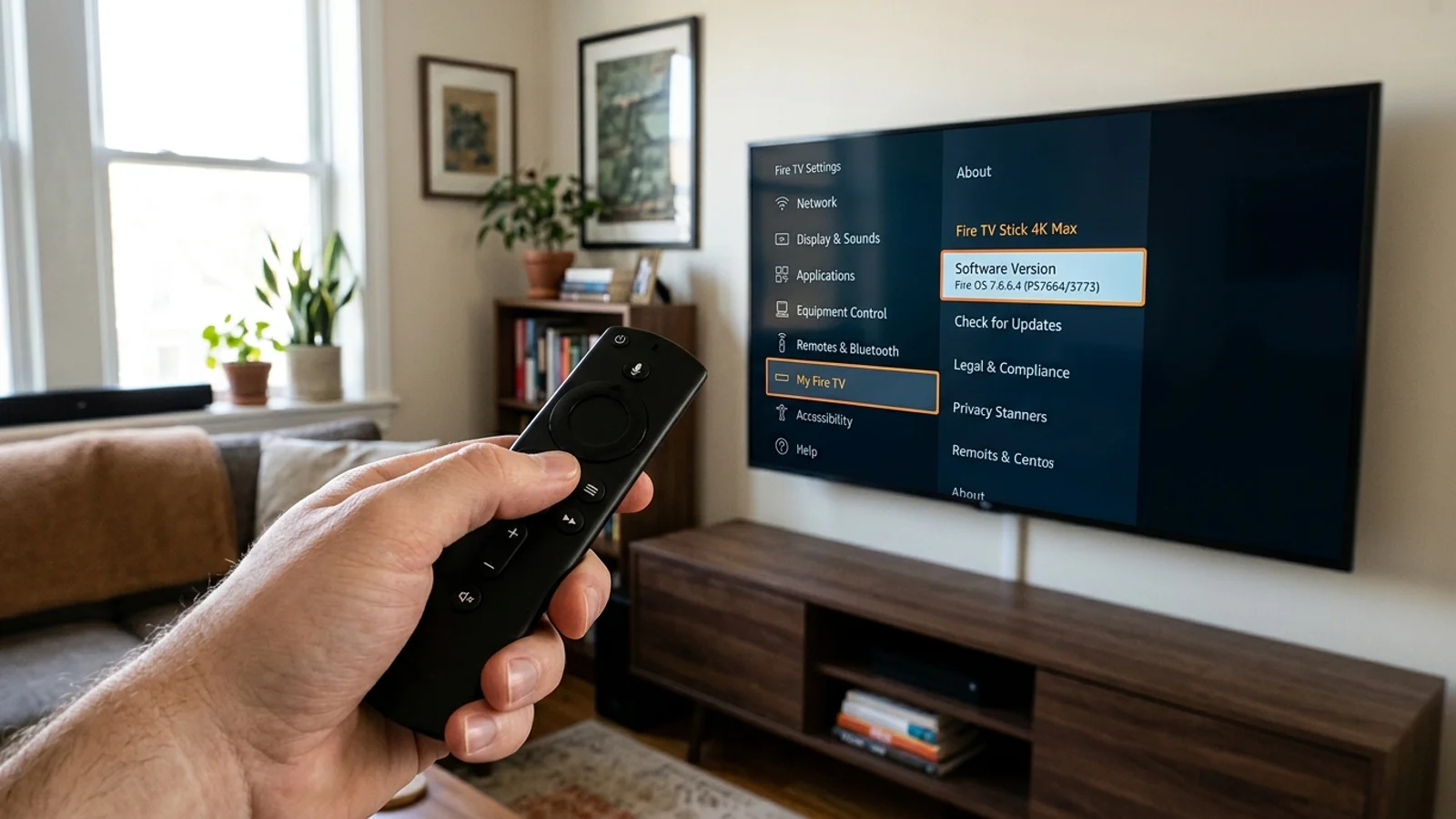
Amazon doesn't clearly label the operating system on its product pages, so check the stick itself:
Go to Settings > My Fire TV > About
Look at Software Version
If the version is listed as "OS" and the number starts with 1 (e.g. OS 1.x) — it's Vega OS. No sideloading.
If it's listed as "Fire OS" — it's the Android-based system. Sideloading works normally.
This is the only reliable test. Don't trust the model name alone — as you'll see below, Amazon has reused names across both systems.
Which Fire TV Sticks Run Vega OS (and Which Don't)
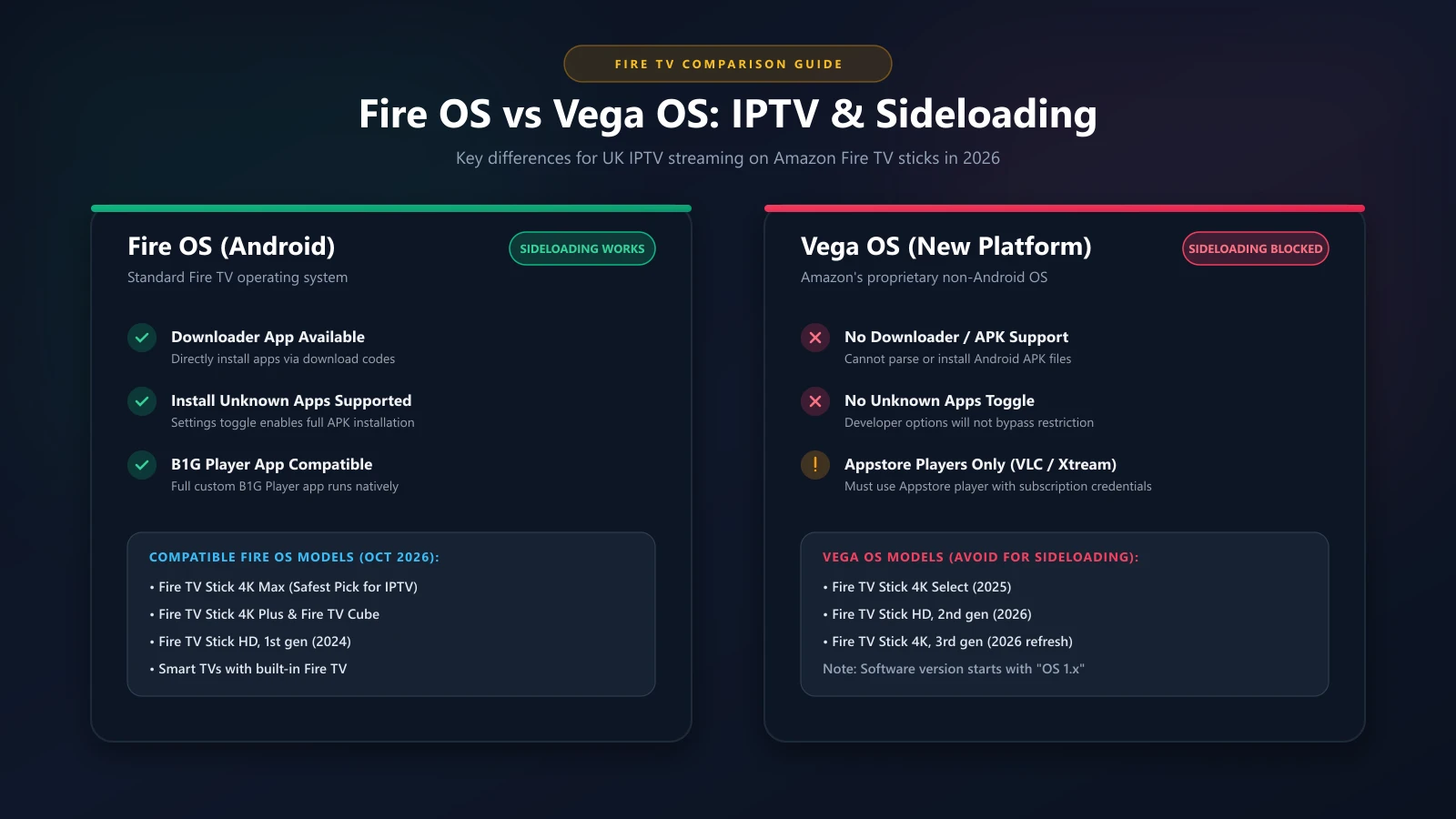
As of October 2026, the situation is:
Vega OS
Sideloading Blocked- ✕ Fire TV Stick 4K Select (2025)
- ✕ Fire TV Stick HD, 2nd gen (2026)
- ✕ Fire TV Stick 4K, 3rd gen (2026 refresh)
Fire OS (Android)
Sideloading Works- ✓ Fire TV Stick 4K Max
- ✓ Fire TV Stick 4K Plus
- ✓ Fire TV Cube
- ✓ Fire TV Stick HD, 1st gen (2024)
- ✓ Smart TVs with Fire TV built in
Watch out for the name trap: there are two products called "Fire TV Stick HD". The 2024 version runs Fire OS and supports sideloading; the 2026 version (Wi-Fi 6, rounded stick with "Fire TV" printed on it) runs Vega OS and doesn't. Same name, opposite capabilities — another reason to use the 30-second check above instead of guessing.
One more thing: Amazon is mid-transition, and the lineup keeps shifting. If you're buying new, verify the OS before you buy — not after. Our compatible devices guide is kept current.
"Fire TV Stick 4K Select Developer Options" — Why That Search Won't Help
This is one of the most-searched queries around the 4K Select, so let's answer it directly: enabling developer options will not let you sideload apps on Vega OS.
On Fire OS sticks, developer options contain the "install unknown apps" permission that makes the Downloader method work. On Vega OS, that toggle simply doesn't exist. Vega does have a developer mode, but it requires a computer, a USB cable and Vega's own developer kit — and it only installs apps written for Vega. It is not a back door for Android APKs.
If you find a video claiming a workaround, treat it with suspicion: as of now there is no legitimate method, settings change or hack that enables APK sideloading on Vega OS. Anyone telling you otherwise is chasing views.
What IPTV Options Still Work on a Vega OS Stick?
Vega OS only runs apps from the Amazon Appstore. So the question becomes: what's actually in the Appstore?
VLC arrived on Vega OS in July 2026 and can play network streams and playlists — a genuine option for playlist-based viewing.
Plex has a Vega app for personal media libraries.
VPN apps are now available natively (NordVPN and IPVanish both ship Vega versions), if you use one.
For IPTV specifically: open the Appstore on the stick itself and look for an IPTV player that supports Xtream Codes login — that's the login format your subscription uses. App availability varies by region, so check on-device rather than trusting a list.
What you can't do: install the B1G Player app itself (detailed on our B1G Player app page), use any Downloader code, or install TiviMate, IPTV Smarters or Kodi — none of them have Vega versions.
Using Your B1G Subscription on Vega OS vs Fire OS
Here's the practical split:
On a Fire OS stick (4K Max, 4K Plus, Cube)
The full experience. Install the B1G Player app with the Downloader method — the current code is always on our B1G Player app page — then enter your subscription login. Our Firestick installation guide walks through it step by step.
On a Vega OS stick (4K Select, new HD, new 4K)
Use your B1G subscription login details inside a compatible Appstore player as described above. The subscription itself works fine — it's only the APK-based app that can't be installed.
Either way, each plan includes one device connection, and you can test everything first with the free 24-hour trial — message us on WhatsApp, no card required, 4K included where your device and connection support it.
Which Fire TV Stick Should You Buy for IPTV in 2026?
If IPTV with sideloaded apps matters to you, buy a stick that still runs Fire OS: the Fire TV Stick 4K Max is the safest pick (still Fire OS as of October 2026), with the 4K Plus and Cube as alternatives. Avoid the 4K Select, the 2026 HD and the 2026 4K if APK installation is part of your plan. Review our full compatible devices guide for supported hardware before ordering.
If you only use official streaming apps (Netflix, Prime Video, Disney+, YouTube), Vega OS sticks are fine. Just know what you're giving up before you buy.
Frequently Asked Questions
Can I install the Downloader app on the Fire TV Stick 4K Select? +
Will my existing Fire TV Stick update to Vega OS automatically? +
Does the Fire TV Stick 4K Select have developer options for sideloading? +
Can I use B1G Player on the Fire TV Stick 4K Select? +
Which Firestick is best for IPTV in 2026? +
Is there really no workaround to sideload on Vega OS? +
Get Started with B1G Player Today
Setting up B1G Player is straightforward when you follow our step-by-step guides. Test the service risk-free with our free 24-hour trial or choose one of our flexible subscription packages.