
Setup Walkthrough • UK Streaming • 2026 Guide
IPTV on Firestick: The Complete UK Setup Guide
The Amazon Firestick is the most popular way to watch IPTV in the UK — it's cheap, it plugs into any TV, and the whole setup takes about five minutes once you know the steps. This guide covers everything: which Firestick to buy, what you need before you start, the setup overview, and the mistakes that trip up most beginners.
If you already know what B1G Player is, skip ahead. If not, read What Is B1G Player? first — it explains the difference between the player app and the subscription in two minutes. Learn more about our UK streaming service.
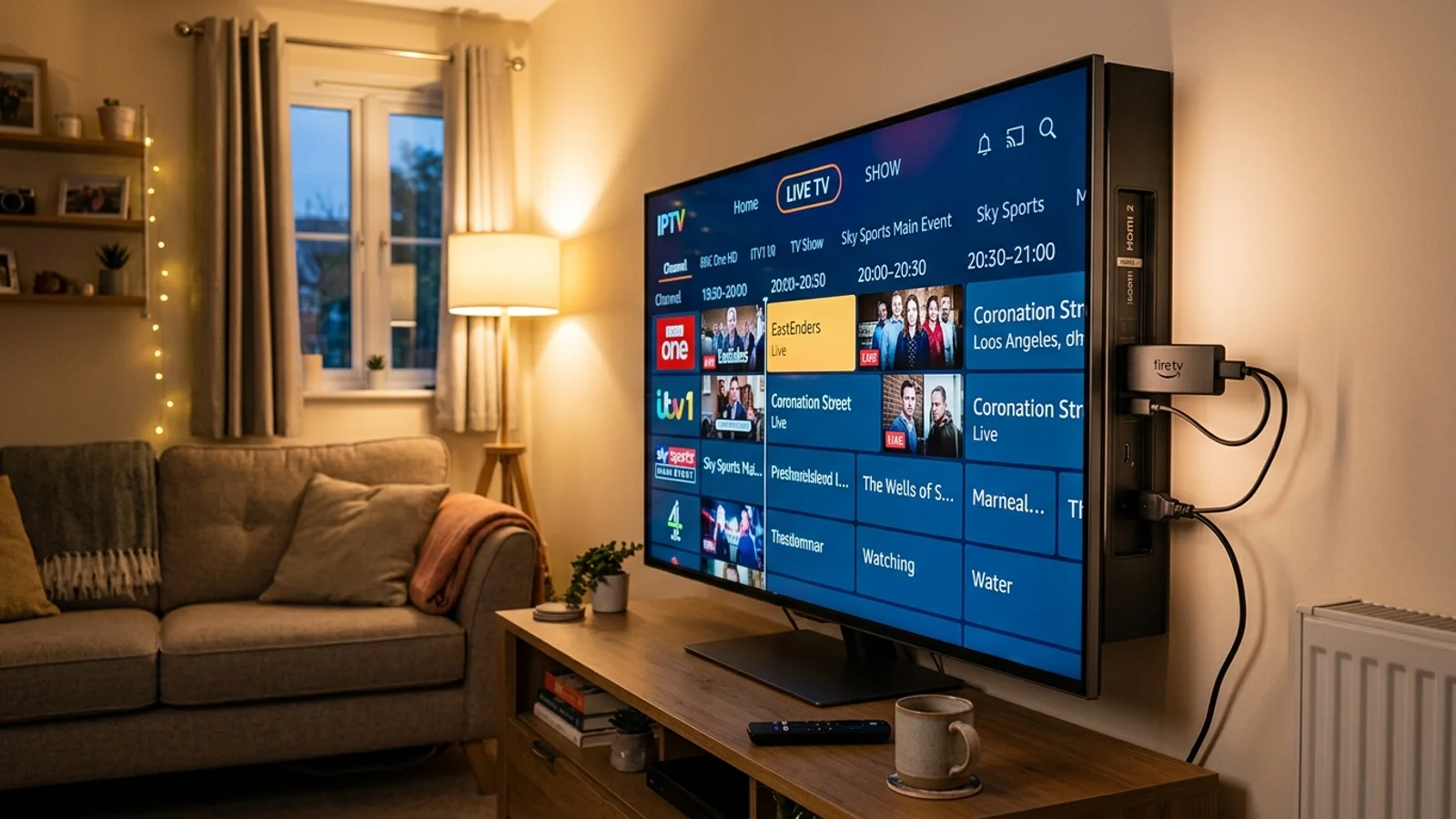
Which Firestick Should You Buy for IPTV?
Not all Firesticks are equal for IPTV in 2026:
Fire TV Stick 4K Max (2nd gen). Runs Fire OS, so the standard Downloader + APK setup works. Fast, Wi-Fi 6E, smooth 4K.
Fire TV Stick 4K (older), Fire TV Cube, Fire TV Stick Lite — all Fire OS.
Fire TV Stick 4K Select and the 2026 Stick HD / 4K Select — these run Vega OS, which blocks sideloading completely. We wrote a full guide on this: Will IPTV Work on the Fire TV Stick 4K Select?
Already own a Firestick? Check Settings > My Fire TV > About — if it says Fire OS, you're good. Our compatible devices guide has the full list.
What You Need Before You Start
Three things, nothing more:
A Fire OS Firestick (see above) with a stable internet connection.
An IPTV subscription or free trial — this gives you the login details (username, password, server URL). You can test everything first with our free 24-hour trial — message us on WhatsApp, no card required.
About 5 minutes and the Downloader app (free, from the Amazon Appstore).
That's it. No cable box, no engineer visit, no extra hardware.
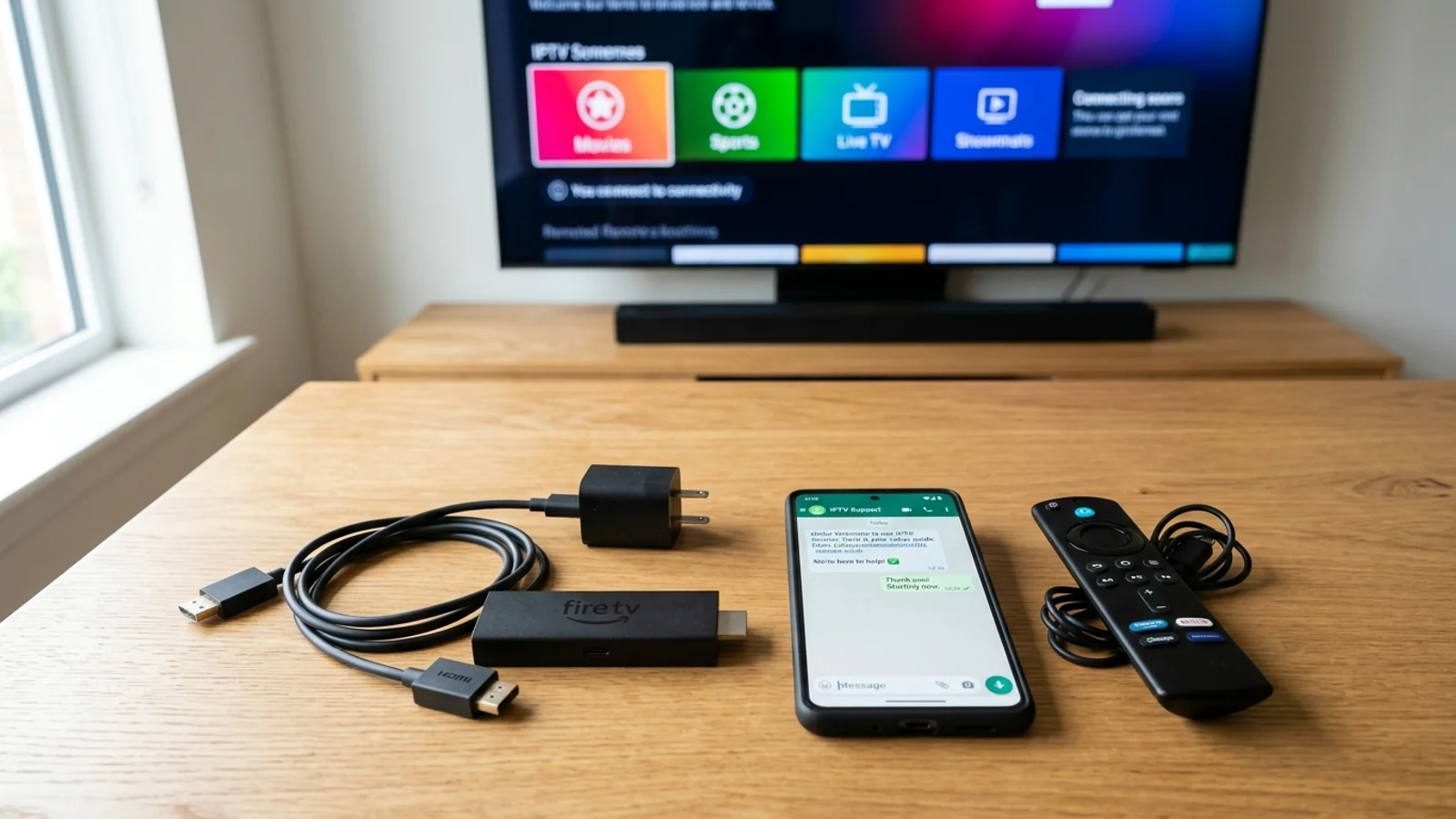
How to Set Up IPTV on Firestick (Overview)
The full step-by-step with screenshots is in our Firestick installation guide — here's the overview so you know what to expect:
Install the Downloader app from the Amazon Appstore on your Firestick.
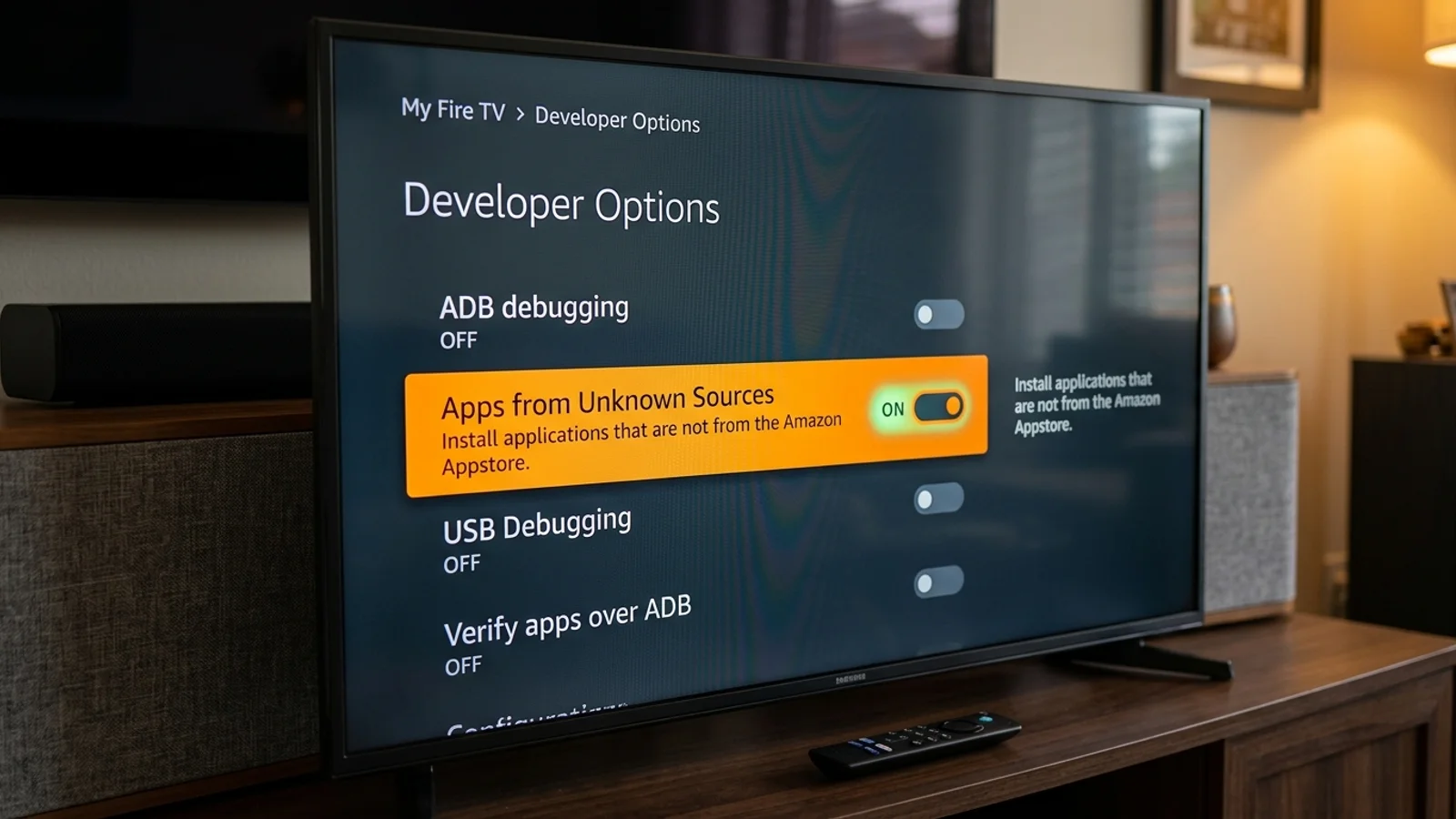
Allow Downloader to install apps: Settings > My Fire TV > Developer Options > Install Unknown Apps > turn ON for Downloader. (On some newer Fire OS versions, Developer Options is hidden — our Firestick installation guide shows the 7-click unlock.)
Enter the current installation code in Downloader. Always use the code published on our B1G Player app page — codes change, and codes from random websites may install the wrong file.
Install the player and open it.
Enter your subscription login details (or trial details) — username, password, server URL.
Let it load, then test a few channels and the programme guide.
Total time: about 5 minutes. If anything fails, our Firestick troubleshooting section covers every common error — or just message our 24/7 WhatsApp support and we'll walk you through it.
5 Mistakes Beginners Make (Avoid These)
Using a random Downloader code from Google or YouTube
Codes belong to specific providers. The wrong code installs the wrong app — or worse. Only use the code on our B1G Player app page.
Downloading APKs from random websites
Repackaged APKs are a real malware risk on a device that's always on your home network. Use the official route.
Buying the wrong stick
The 4K Select looks like a bargain until you discover Vega OS blocks the whole setup. Check before you buy. See our breakdown: Will IPTV Work on the Fire TV Stick 4K Select?
Skipping the trial
Never pay for a year before testing on your own TV and Wi-Fi. Our B1G Player free trial exists for exactly this — 4K included where supported.
Blaming the app for buffering that's actually Wi-Fi
If only some channels buffer, it's usually the network, not the player. Our not-working troubleshooter helps.
How Much Does IPTV on Firestick Cost?
The Firestick itself is a one-time purchase (usually £40–£70 depending on the model). The subscription is separate: B1G Player UK plans are £12 for 1 month, £25 for 3 months, £35 for 6 months, or £50 for 12 months — each with one device connection, instant activation, and 24/7 WhatsApp support. Compare all IPTV subscription plans.
Frequently Asked Questions
How do I put IPTV on my Firestick? +
Which Firestick is best for IPTV? +
Do I need a subscription before installing the player? +
Is it legal to put IPTV on a Firestick? +
Why is my IPTV buffering on Firestick? +
Can I use one subscription on two Firesticks? +
Get Started with B1G Player Today
Setting up B1G Player is straightforward when you follow our step-by-step guides on the B1G Player blog. Test the service risk-free with our free 24-hour trial or choose one of our flexible IPTV subscription plans.