
Technical Guide • IPTV Setup • 2026 Guide
Xtream Codes Explained: What It Is and How to Use It
If you've just received an IPTV subscription or trial, you were probably given three things: a username, a password, and a server URL. That combination is called an Xtream Codes login — and it's the simplest way to connect your subscription to a player app. This guide explains what each part means, how it differs from an M3U playlist, and how to use it.
New to streaming? Read What Is B1G Player? to understand the player app vs subscription, check our IPTV on Firestick setup guide, download the app from our B1G Player app page, or follow our step-by-step Firestick guide. You can also explore more guides on the B1G Player blog, learn more about our service, or compare our IPTV subscription plans.
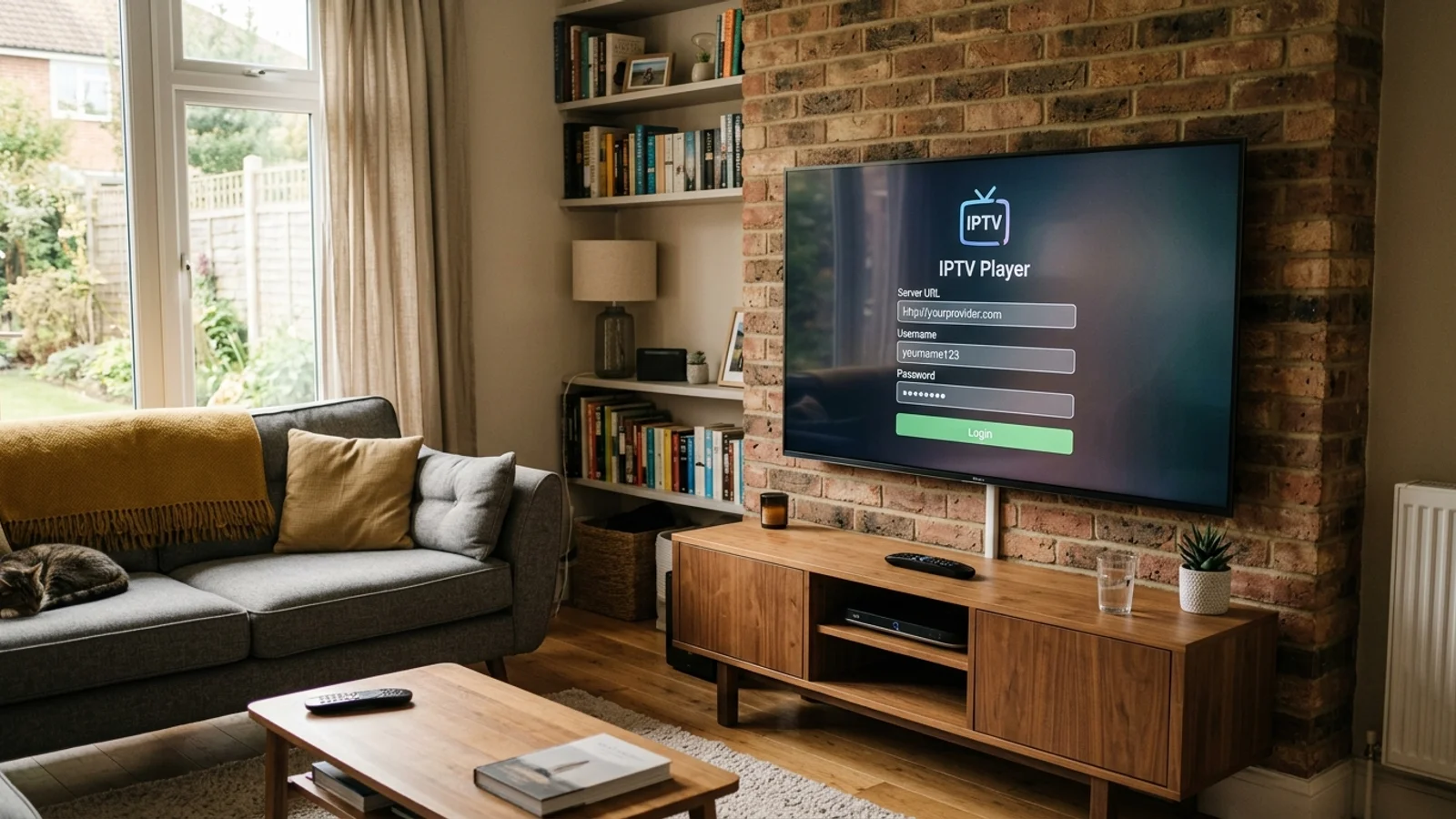
What Are Xtream Codes?
Xtream Codes is a login format — nothing more. Instead of downloading a giant playlist file, your player app logs into your provider's server with your credentials, and the server sends back your channels, movies, EPG and catch-up automatically.
The three parts:
Server URL (also called portal/host): the address of your provider's server. It comes with your subscription or trial.
Username: your personal account name.
Password: your personal account password.
Enter all three exactly as provided — including capitals and without extra spaces — and the player does the rest. Keep these details private; they're the keys to your subscription.
Xtream Codes vs M3U Playlist: What's the Difference?
You'll see both terms. Here's the practical difference:
| Feature | Xtream Codes login | M3U playlist |
|---|---|---|
| What you enter | Username + password + server URL | One long playlist URL |
| EPG (TV guide) | Loads automatically | Often needs a separate EPG URL |
| Catch-up / VOD sections | Organised automatically | Depends on the playlist |
| If details change | Provider updates server-side | You need a new playlist link |
| Ease of use | Easier for beginners | Fine, but more manual |
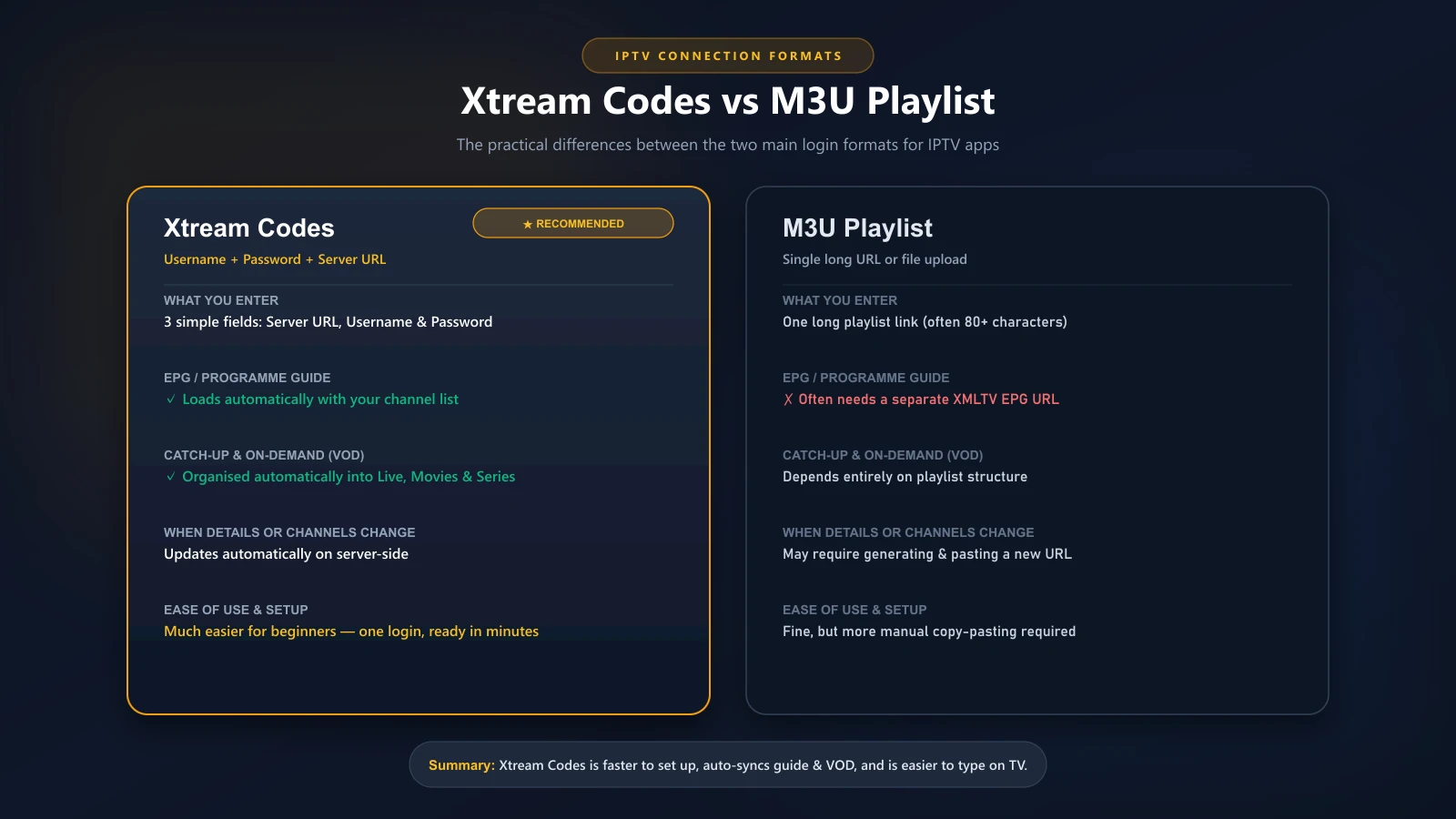
Our recommendation for beginners: use Xtream Codes. It's three fields, one login, and everything — channels, guide, on-demand — loads itself. M3U is perfectly fine too, but it needs more manual setup.
How to Enter Xtream Codes in Your Player
The exact buttons vary by app, but the flow is always the same:
Open your IPTV player (on Firestick, Smart TV, phone — wherever you installed it).
Choose "Add Playlist", "Add User", or "Login with Xtream Codes API" (wording differs per app).
Select Xtream Codes (not M3U) as the playlist type.
Enter the server URL, username, and password exactly as provided.
Save / log in. The app will load your channels — give it a few minutes on first login, especially with large channel lists.
Once loaded, browse live TV, check the EPG, and test a movie.
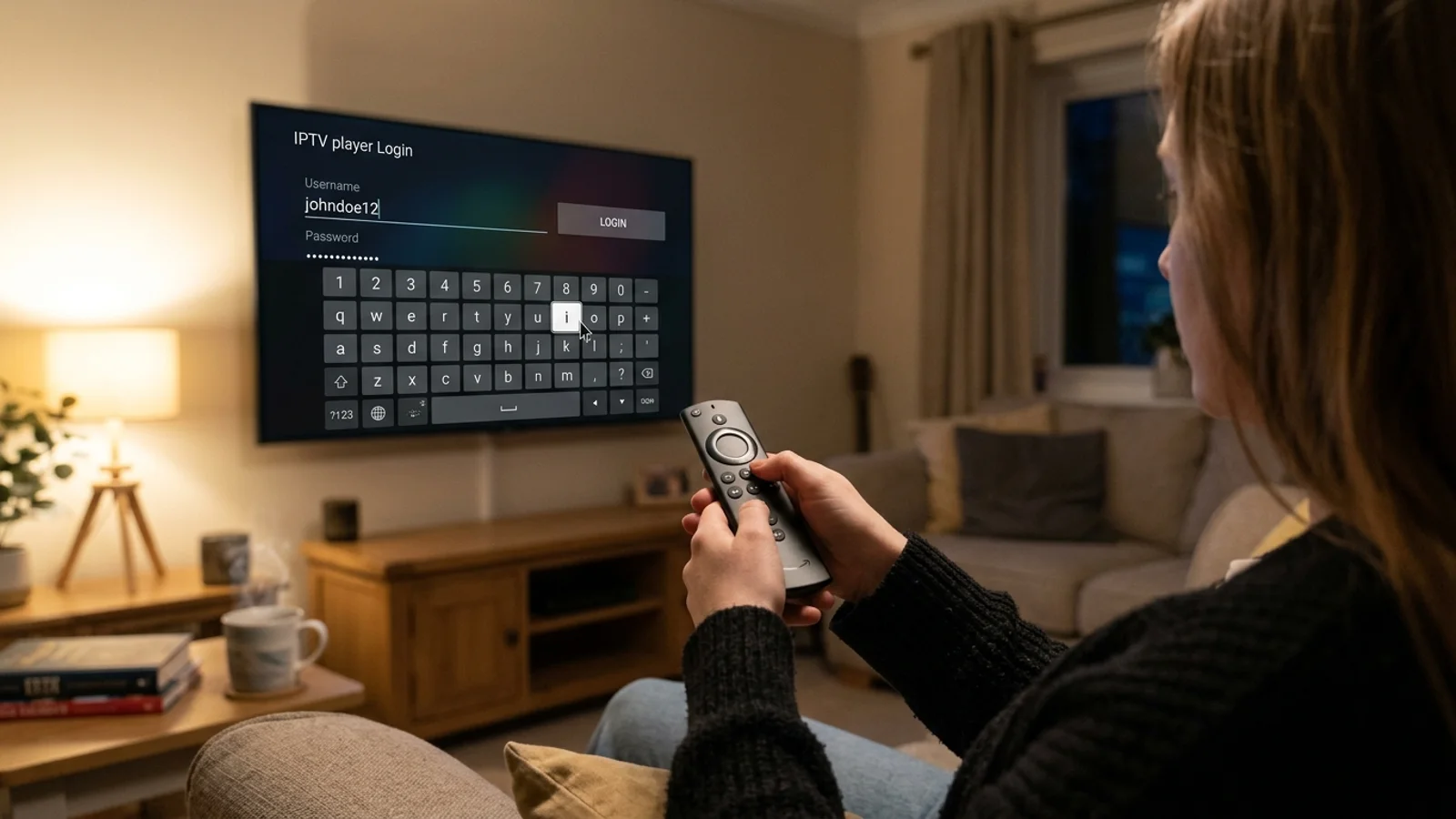
Stuck? Our installation guides cover the popular apps step by step, and our Firestick guide shows the exact screens.
Common Xtream Codes Problems (and Fixes)
"Invalid login" / "Authorization failed": 9 times out of 10 it's a typo — check capitals, and make sure there's no space at the start or end of any field (copy-paste adds these silently).
Server URL rejected: enter it exactly as given, including http:// and the :port number if there is one. Don't add or remove slashes.
Channels load but EPG is empty: wait 5–10 minutes — the guide loads after the channels. If still empty, refresh EPG in the player settings.
Worked yesterday, not today: check your subscription/trial is still active first, then restart the player. If it persists, message support — don't keep re-entering details.
Never share your login publicly when asking for help — use our WhatsApp support instead.
Where Do I Get Xtream Codes Login Details?
From your provider, after you subscribe — or during a free trial. With B1G Player UK, your login arrives immediately after payment (instant activation), or the moment your free 24-hour trial starts. No card needed for the trial — one WhatsApp message and you're testing.